PayPack logo
PayPack logo

All articles

Data OrchestrationUpdated a day ago

Data Orchestration automates the secure, reliable exchange of key data between Stripe and NetSuite, ensuring both systems stay synchronized.

PayPack - Stripe to NetSuite Invoice Import

Overview

This integration automatically syncs Stripe invoices into NetSuite via PayPack, including all related Customer, Subscription, and Payment details.

Invoices can be imported in three ways:

  • Batch Import – Scheduled sync of multiple invoices.

  • On-Demand Import – Manually import specific invoices using their IDs.

  • Real-Time Import – Instant sync triggered by Stripe webhooks.

All methods use the same PayPack configuration, ensuring consistent, accurate, and transparent invoice processing.

Key Features:

Automated Invoice Synchronization

  • Automatically creates NetSuite records—Customer, Invoice, Subscription, and Customer Payment—from Stripe data.

  • Ensures accurate data and eliminates the need for manual reconciliation.

Flexible Execution Modes

  • Supports Batch (Scheduled), On-Demand (Manual), and Real-Time (Webhook) flows.

  • All modes use the same configuration and mapping, keeping field mapping consistent.

Centralized Configuration & Mappings

  • Managed through PayPack Flow Configuration and Mapping records.

  • Instructions for adding or updating field mappings are available in the Field Mapping Documentation.

Comprehensive Logging & Error Tracking

  • Keeps detailed logs in PayPack Flow Record Logs and PayPack Flow Status Logs.

  • Helps quickly identify and resolve issues during or after synchronization.


Configuration Settings:

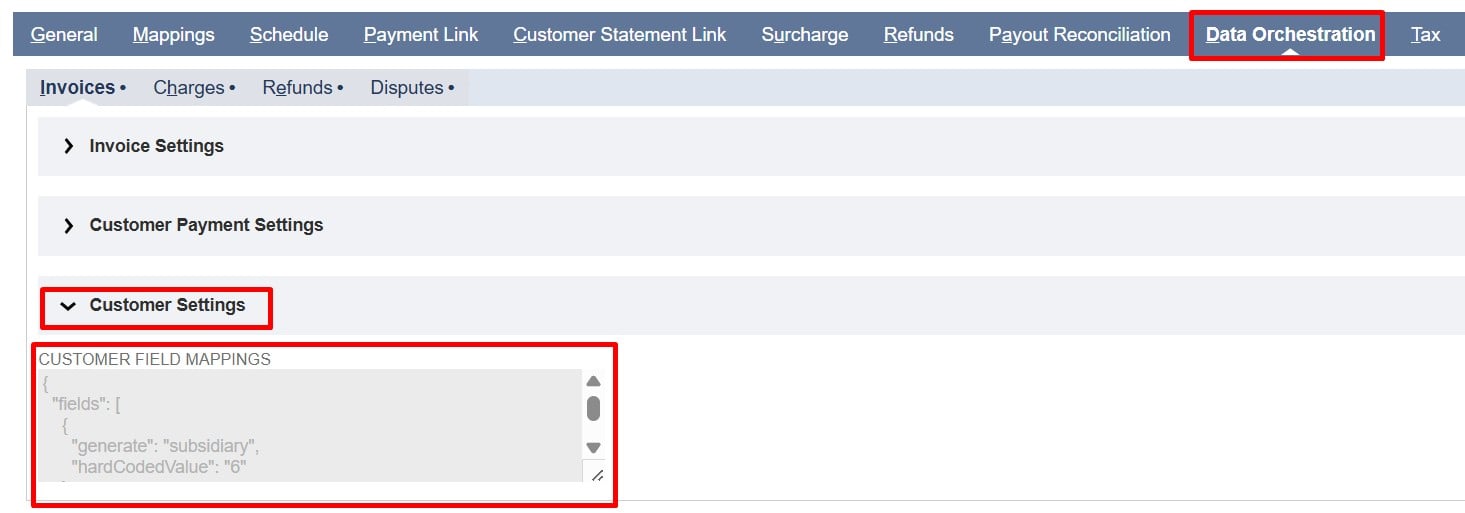
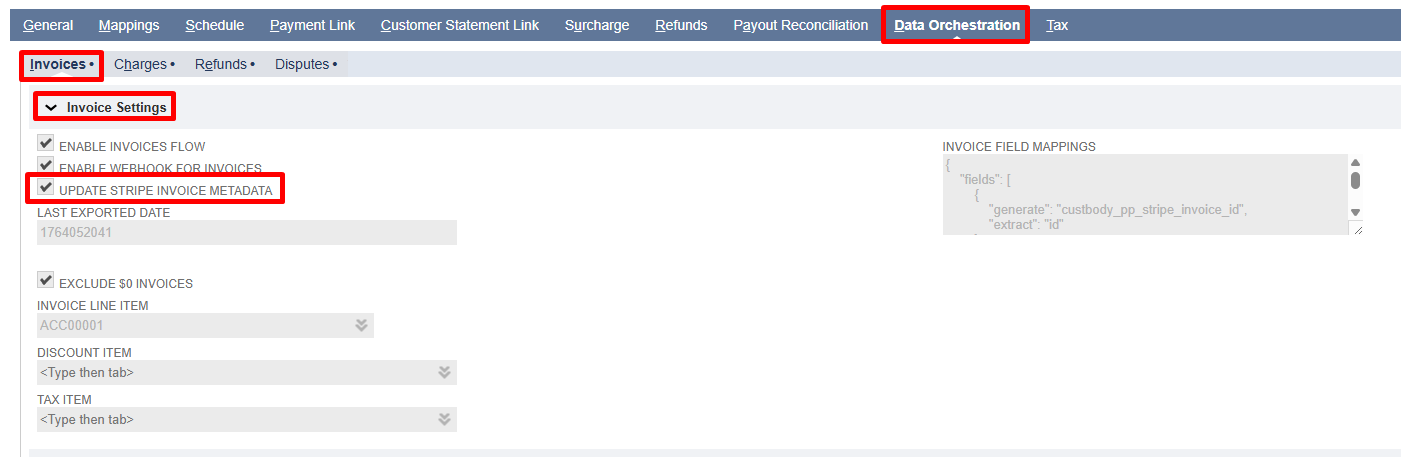
All invoice settings can be found under the Invoices subtab in the Data Orchestration tab. The fields are grouped together under Stripe to NetSuite for easy access.
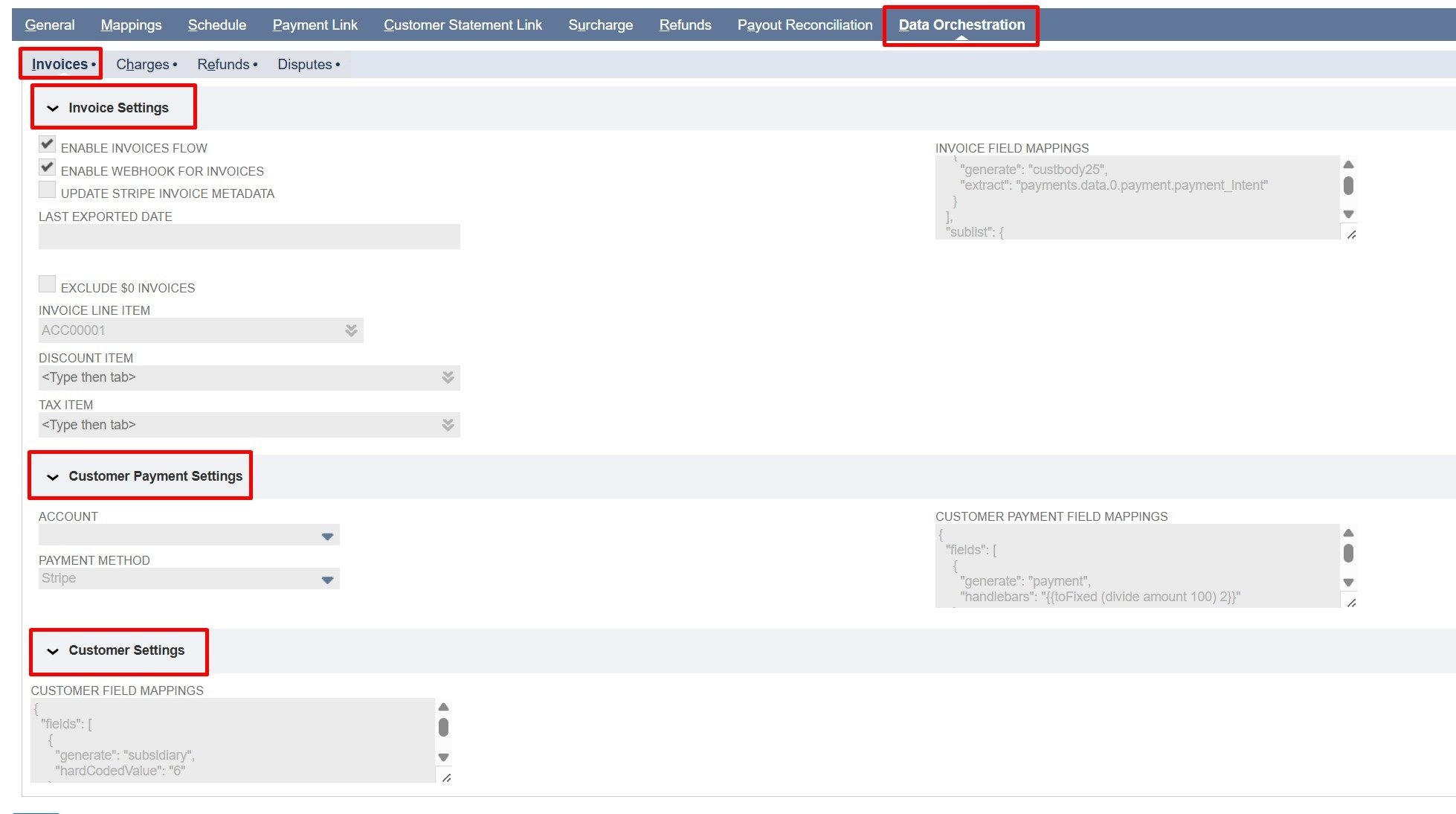
Note: Click any field label in the Invoices tab to see a description of its purpose and usage.

Field Descriptions

  • Enable Invoices Flow: Check/mark to enable importing Stripe invoices into NetSuite. Uncheck to stop all invoice imports.

  • Enable Webhook for Invoices: Check/mark to let Stripe webhooks automatically sync invoices to NetSuite when they are finalized or paid.

  • Update Stripe Metadata: Check/mark to automatically write the NetSuite Invoice Internal ID back to the corresponding Stripe invoice after it is create

  • Last Exported Date: Shows the last time invoices were imported from Stripe (in Unix timestamp). This value is used in the next import to fetch only invoices created after this time using the created[gte] parameter.

Note: This field is updated by the system after every flow execution and is read-only.
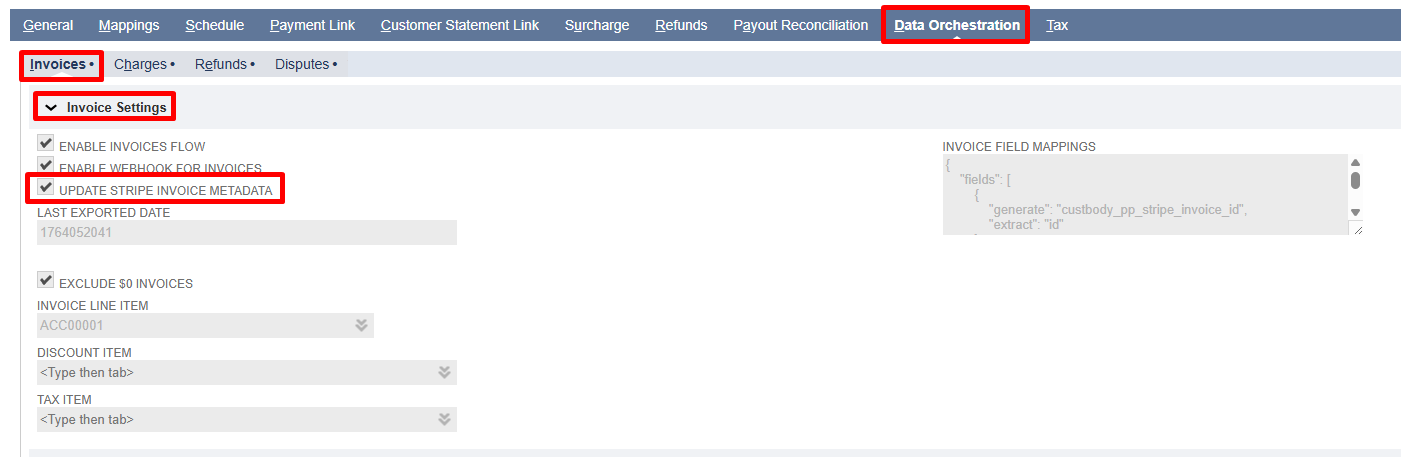
  • Exclude $0 Invoices: Check/mark to automatically skip importing invoices with a total amount of zero.
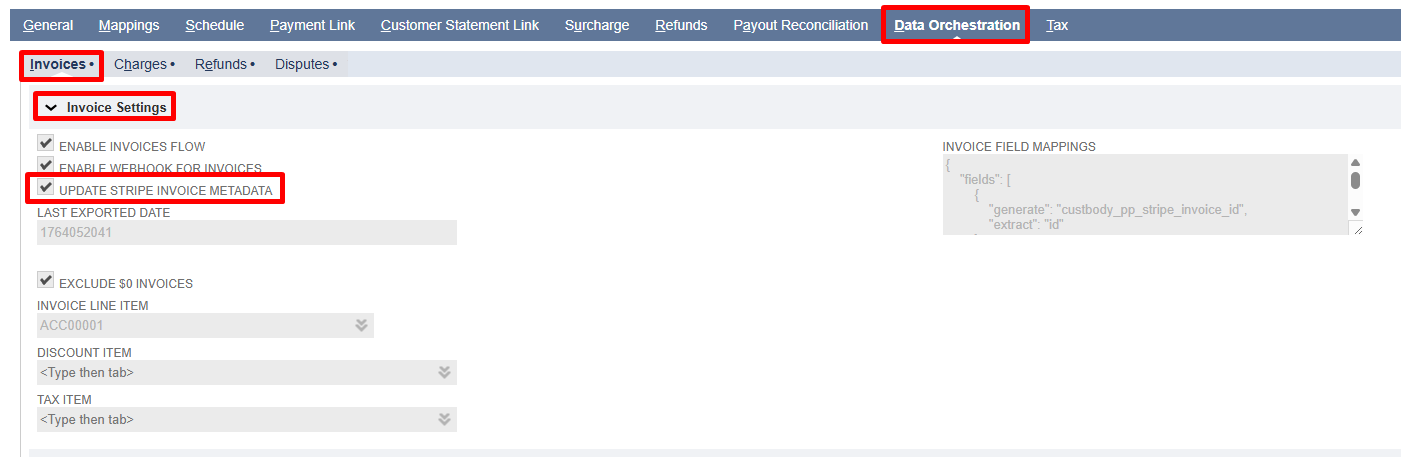
  • Invoice Line Item: Maps the total Stripe invoice amount to the selected NetSuite item. Regardless of how many lines are on the Stripe invoice, only one line will be added to the NetSuite invoice.
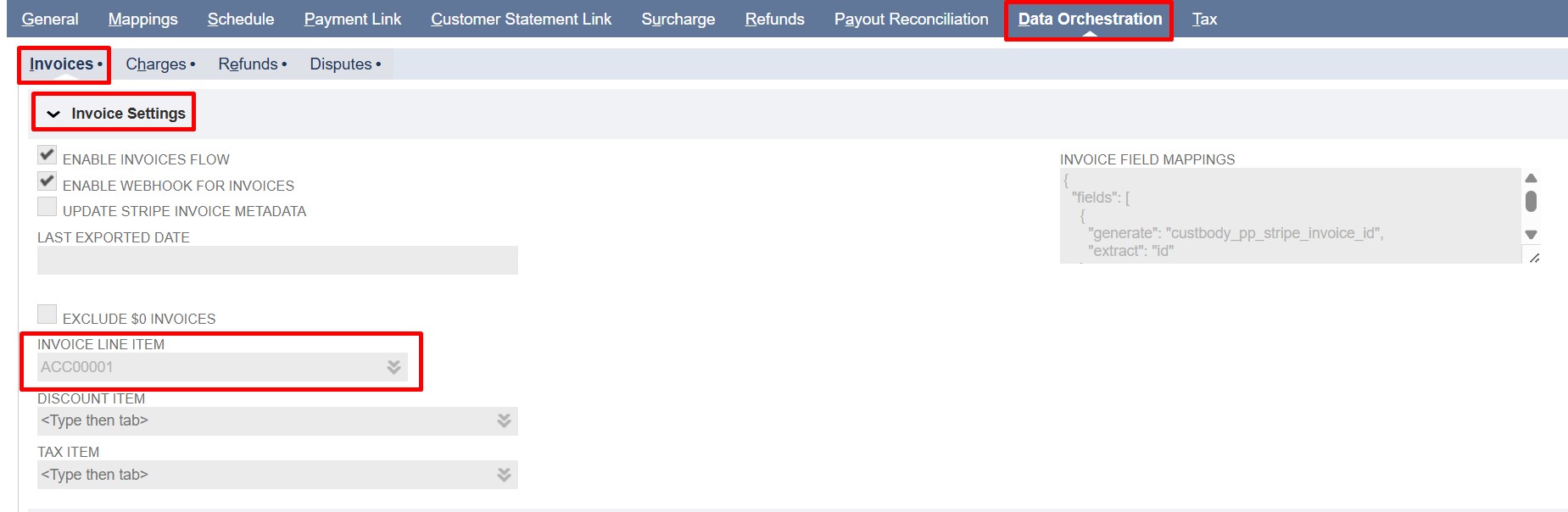
Note: Taxes and discounts from Stripe will not be imported.

  • Discount Item: Maps the NetSuite item that represents any discounts from Stripe invoices.

Note: Use only non-inventory items. All Stripe discounts appear as a single line on the NetSuite invoice.
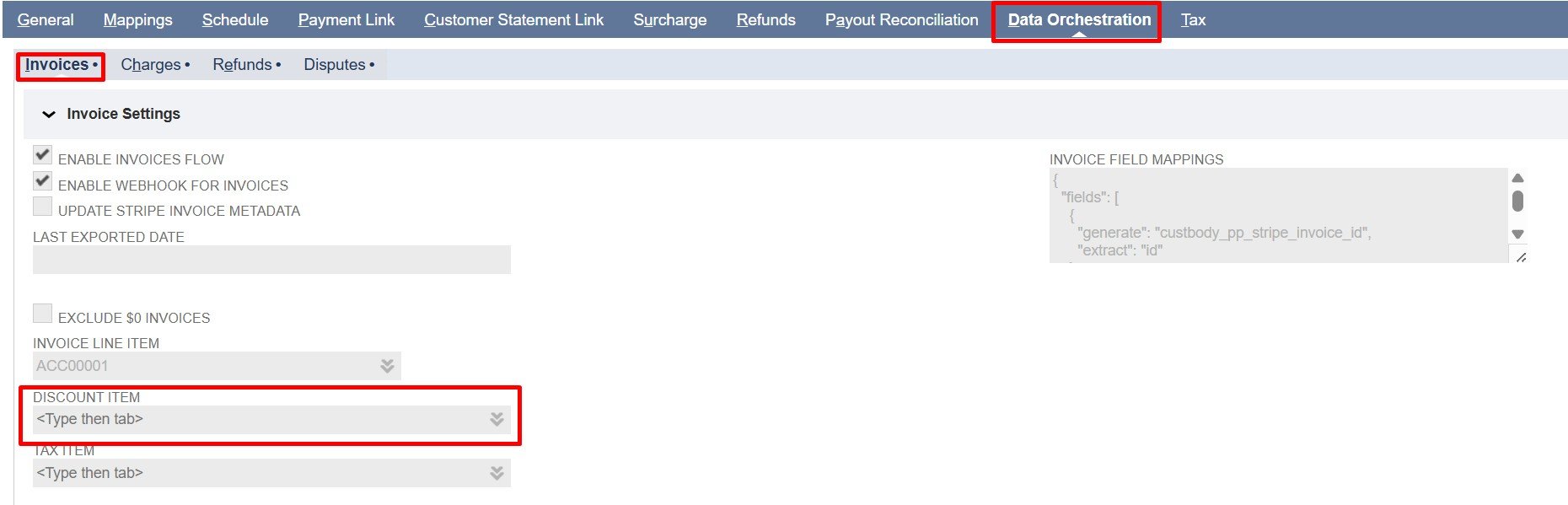
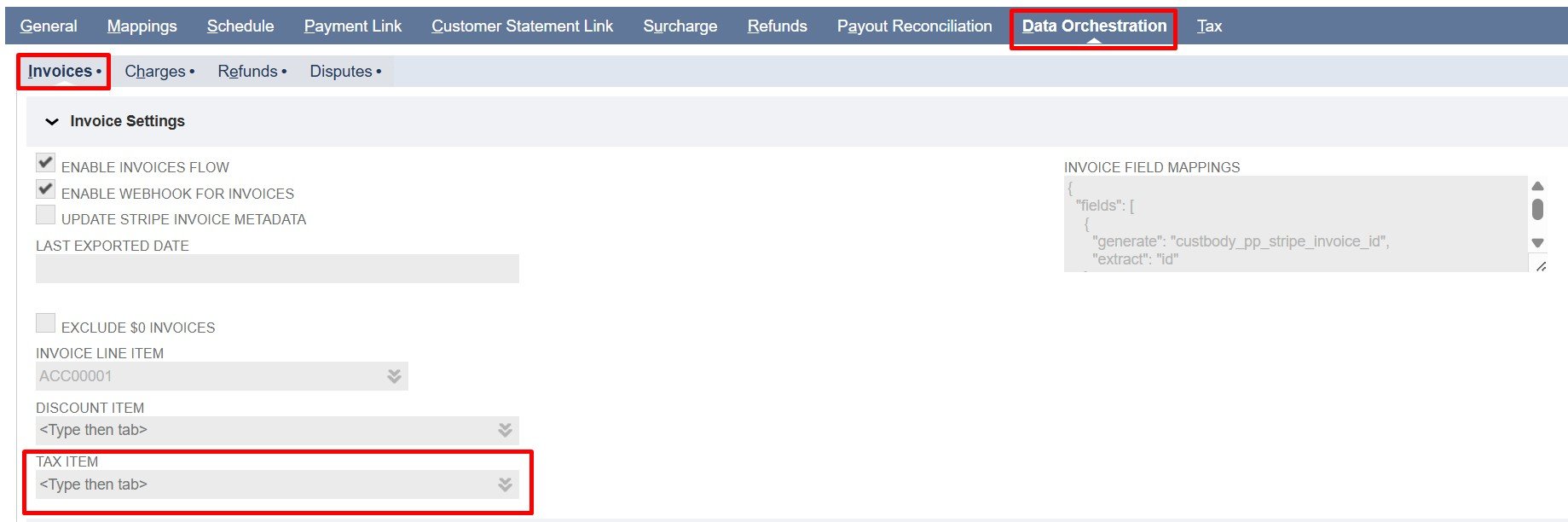
  • Tax Item: Maps the NetSuite item that captures taxes from Stripe invoices.

Note: Use only non-inventory items. All Stripe taxes are combined into a single line on the NetSuite invoice.
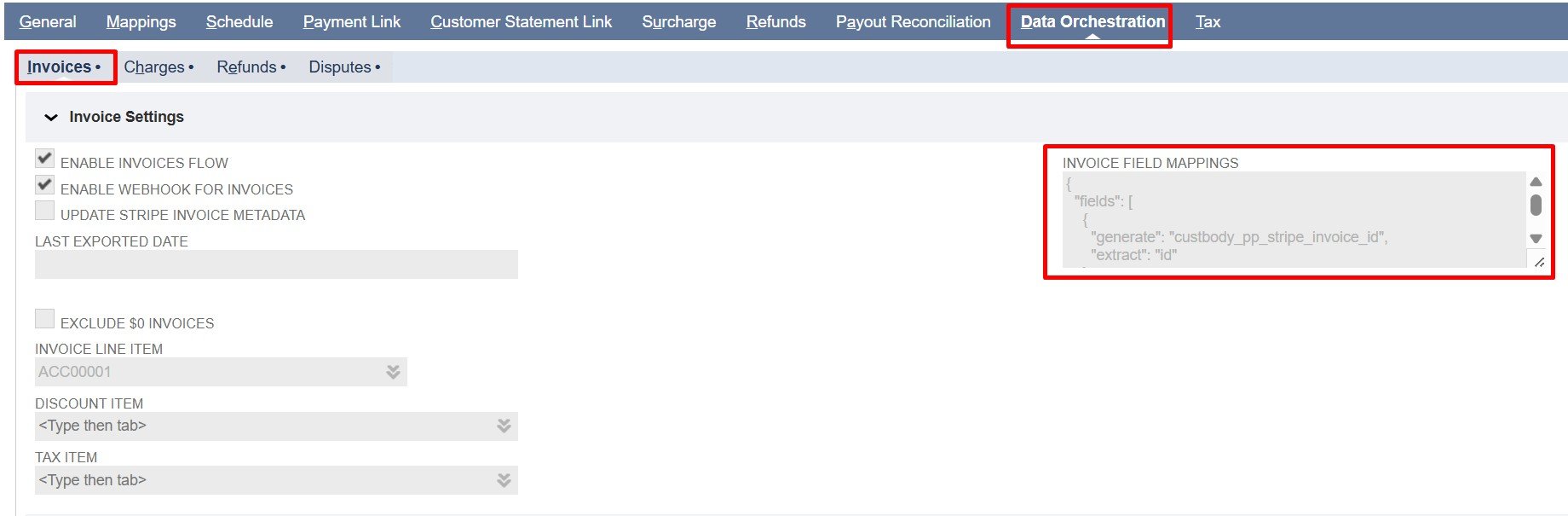
  • Invoice Field Mappings: Controls how Stripe Invoice fields are mapped to NetSuite Invoice fields and allows you to include related customer data from the associated Stripe customer.
    Note: Fields from the 
    Stripe invoice object can be used. Associated customer data is available via stripeCustomerData (e.g., stripeCustomerData.id, stripeCustomerData.email).
 Item Mapping Hierarchy:

  1. Configured Items (Invoice Line, Discount, Tax): 

  • If items are configured, they are imported as single-line items on the invoice as described above.

  1. Multiple Line Items:

  • Invoice Field Mappings let you link each Stripe invoice line to a NetSuite item. In this case, the default Invoice Line Item field must be left blank in the configuration settings.

  • You can use either static or dynamic lookups to select NetSuite items for each Stripe Invoice line.

  • Sublist mappings are required even when default items are set  (using Invoice Line Item, Discount Item, or Tax Item field). Sublist mappings allow mapping beyond Item, Quantity, and Amount, ensuring all invoice lines, discounts, and taxes from Stripe are imported correctly into NetSuite

Note: 
1. Always map Item, Quantity, and Amount for tax and discount lines, plus other required fields. Quantity defaults to 1, and Amount comes from Stripe (total discounts or taxes).

2. Use the record mapping fields to map all required line-level fields.
3. Using the Invoice Line Item always adds a single line for the total amount from the Stripe Invoice.
4. For conditional mapping, always leave the default item fields blank and use static or dynamic mapping. Any values entered in these fields will override the conditional logic in the Invoice Field Mappings.

Refer to the Field Mapping Documentation for examples and detailed instructions on implementing conditional mappings.

  • Payment Account: Select the NetSuite account where Stripe payments will be recorded. All imported payments are posted to this account.
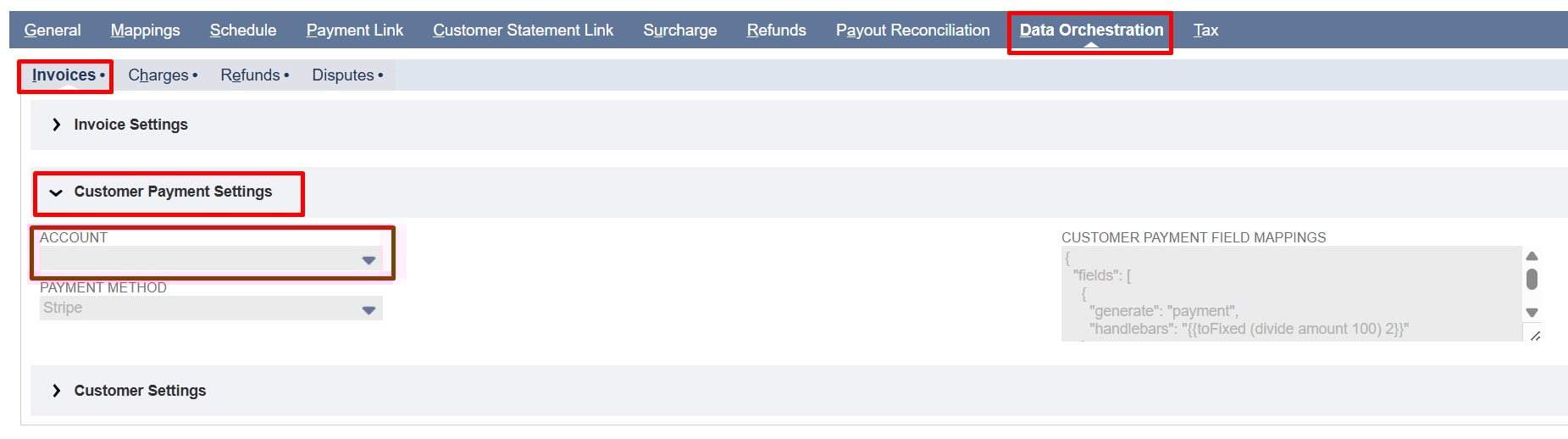
  • Payment Method: Select the payment method in NetSuite for recording Stripe payments.

Note: To use condition-based mapping, leave the Payment Account and  Payment Method fields empty and use static or dynamic mapping. Filling in these fields sets a global default that overrides any conditional logic in the Customer Payment Field Mappings.

Refer to the Field Mapping Documentation for examples and detailed instructions on implementing conditional mappings.

  • Customer Payment Field Mappings: Controls how Stripe Payment (Payment Intent) fields are mapped to NetSuite Customer Payment fields and allows inclusion of related invoice and customer data from the associated Stripe objects.

Note: Fields from the Stripe payment intent object can be used. Payment data is organized as an array within each payment object, with associated invoice and customer details available via parent objects (for example, parent.stripeInvoiceData.id, parent.stripeCustomerData.id).

  • Customer Field Mappings: Controls how Stripe Customer fields are mapped to NetSuite Customer fields

Note: Only fields from the Stripe customer object can be used.

For detailed JSON mapping examples and instructions, refer to the Field Mapping Documentation.

Implementation Details:

The following steps are shared across Batch, On-Demand, and Real-Time flows and explain how Stripe data is imported into NetSuite.

  1. Get Invoices:

  • Fetches invoices from Stripe API (for Batch and On-Demand) or from the webhook payload (for Real-Time).

  • Filters invoices based on status (only open or paid invoices are processed).

  • Skips invoices already present in NetSuite using the Stripe Invoice Id (PayPack) field on the invoice record.

  • Conditions:

    • Exclude $0 invoices if configured in settings.

    • Use the Last Exported Date field for incremental sync. (initially set on the Batch script)

    • Use the Stripe Invoice IDs field to import specific invoices (On-Demand) 


  1. Get Invoice Extra Line Items:

  • Fetches all line items from Stripe using API pagination to ensure every item is retrieved, no matter how many are on the invoice.

  1. Get Customer:

  • Fetches customer information from Stripe based on the Stripe Customer ID included in the invoice details.

  1. Get Subscription:

  • Identifies if the invoice is linked to a Stripe Subscription.

  • If it is, retrieves subscription details such as Subscription ID, name, status, amount, current period start/end, and upcoming invoice date.

  1. Get Payment Intents:

  • Retrieves payment intent details using the Stripe Payment Intent ID present in the Stripe Invoice details.

  • Conditions:

    • Retrieves only Payment Intents with a status of paid.

    • Only retrieves Payment Intents for invoices that are fully paid or partially paid (i.e., where the amount_paid is greater than 0, but less than the amount_due).

Note: A maximum of 10 payment intents is retrieved per execution. Accordingly, the flow will create up to 10 customer payments for a given invoice based on the available payment intents.

  1. Create Customer Record:

  • Checks if a Stripe customer exists in NetSuite via the Stripe Customer Id (PayPack) field OR the Email field on the record.

  • If not found, creates a new customer record by populating the fields through mappings.
    Note: Existing customer records in NetSuite are not modified.

  1. Create Invoice Records:

  • Creates a NetSuite Invoice with default values as customer (record initialization) and mapped fields in the configuration.

  • Populates line items, discounts, and taxes according to mappings.

  • Uses configured Discount and Tax Items or the line-item mappings in Invoice Field Mappings to apply tax and discounts to the invoice.

  • Stores the Stripe Invoice ID in the Stripe Invoice ID (PayPack) field of the NetSuite Invoice record if mapped.

  • Taxes can be handled in two ways:

  • Inclusive — the tax is already part of the item price. For items priced with tax included in NetSuite, include the ignoreInclusiveTax mapping to ignore the inclusive tax and keep totals accurate. Refer to the example here.

  • Exclusive — the tax is not added to the item price. When an item on the invoice is tax-exclusive (and the NetSuite rate field is mapped to Stripe item price before tax), the ignoreInclusiveTax mapping isn’t needed. Tax will appear as a separate line to match the total.

  • Conditions:

    • Skip creation if the total invoice total is $0. (Based on the Exclude $0 checkbox).

    • The invoice should have at least one line item.

    • Log each invoice creation or skipped invoice in the PayPack Flow Record Log.


  1. Create or Update Subscription Records:

  • When a Stripe Subscription exists for a Stripe Invoice, a matching PayPack Subscription record is created or updated in NetSuite. The existing PayPack Subscription record is identified using the Stripe Subscription ID before updating.

  • Populates the following fields on the PayPack Subscription custom record in NetSuite: subscription name, amount, current period start/end, upcoming invoice date, and status.

  1. Create Customer Payment Records:

  • Before creation, the flow checks for an existing Customer Payment record using the Stripe Payment Intent ID (PayPack) in NetSuite. Existing payments found with this ID are ignored to prevent duplication.

  • Creates a Customer Payment record in NetSuite for each successful payment intent.

  • Each payment is applied to the corresponding invoice through the sublist mappings, which define how the payment is linked and applied during import. 
    Note: Refer to the Sample Customer Payment Mapping section for detailed sublist mapping configurations and examples on how to correctly apply payments to invoices.

  • Populates fields such as payment date, amount, and Stripe Payment Intent ID (PayPack) based on field mappings.

  1.  PayPack Logging Structure:
    The custom records (PayPack Flow Status Log and PayPack Flow Record Log) together provide full traceability, help identify failed or skipped records, and support auditing for all Data Orchestraction flows.

  • PayPack Flow Status Log:This custom record logs the overall progress of a flow, including start/end times, total records processed, errors or ignored records, and final status. It gives a clear summary for monitoring and auditing purposes.

  • PayPack Flow Record Log: This record tracks individual Stripe records processed in a flow, including the Stripe ID, related NetSuite transaction or customer, Stripe API responses, errors, and optional notes. Each log is linked to the Flow Status Log for context.


Script-Specific Details:

  • Batch / MapReduce Script:

    • Processes invoices in batches based on creation date greater than or equal to the last exported date or start date.

    • On the first run, when there is no Last Exported Date recorded, the script uses the Invoice Start Date parameter on the deployment record as the starting point for fetching invoices.

    • For all subsequent runs, the script uses the Last Exported Date (the date of the most recent successful export) to identify and process only new invoices created after that date.

    • This ensures that invoices are fetched incrementally without duplication across runs.

    • The script runs on a scheduled basis, automatically executing at defined intervals to keep Stripe and NetSuite synchronized.

    • Parameters:

      • Stripe Account Id (custscript_pp_stripe_account_id) – This parameter tells the script which Stripe account to use during a run and matches the internal ID of the PayPack Stripe Account Configuration custom record in NetSuite.

      • Invoice Start Date (custscript_pp_inv_start_date) – Indicates the earliest date for fetching invoices, used only on the first execution or if no previous Last Exported Date (found in the Configuration) exists. This value must be entered manually as a timestamp (for example, 1761147332) representing seconds since the Unix epoch. (Upon completion of a flow, the Last Exported Date is automatically updated.)

  • On-Demand MapReduce Script:

    • Invoices are processed based on the specified Stripe Invoice IDs.

    • Primarily used to import missing invoices.

    • Runs only when triggered by the user.

    • Parameters:

      • Stripe Account Id (custscript_pp_od_stripe_account_id) –  This parameter tells the script which Stripe account to use during a run and matches the internal ID of the PayPack Stripe Account Configuration custom record in NetSuite.

      • Stripe Invoice IDs (custscript_pp_od_stripe_invoice_ids) – This field accepts a comma-separated list of specific invoices, with a limit of 10 Stripe Invoice IDs at a time.

  • Real-Time / Webhook Script:

    • The Real-Time / Webhook Script processes Stripe webhook events, specifically:

      • invoice.finalized – triggers the creation of open invoices in NetSuite.

      • invoice.paid – triggers the creation and application of customer payments in NetSuite.

    • No additional parameters are required; it relies on the webhook payload.

    • This script executes automatically in real time whenever Stripe sends the configured webhook events.

    • Use this script when invoices or payments need to be reflected in NetSuite immediately after the corresponding event occurs in Stripe, ensuring up-to-date financial records.

    • For detailed instructions on configuring the webhook, see the existing documentation – Webhook Configuration.

Sample Invoice mapping commonly used

1{
2  "fields": [
3    {
4      "generate": "custbody_pp_stripe_invoice_id",
5      "extract": "id"
6    },
7    {
8      "generate": "duedate",
9      "fieldType": "date",
10      "extract": "due_date"
11    },
12    {
13      "generate": "custbody25",
14      "extract": "payments.data.0.payment.payment_intent"
15    }
16  ],
17  "sublist": {
18    "item": [
19      {
20        "generate": "item",
21        "dynamicLookup": {
22          "recordType": "inventoryitem",
23          "filters": [
24            ["stockdescription","is",
25              "{{lines.data[].pricing.price_details.product}}"
26            ],"and",
27            ["isinactive","is","F"]
28          ],
29          "resultField": "internalid",
30          "default": "502"
31        }
32      },
33      {
34        "generate": "quantity",
35        "handlebars": "{{lines.data[].quantity}}"
36      },
37      {
38        "generate": "rate",
39        "handlebars": "{{toFixed (divide lines.data[].pricing.unit_amount_decimal 100) 2}}"
40      },
41      {
42        "generate": "location",
43        "hardCodedValue": "2"
44      },
45      {
46        "generate": "taxcode",
47        "hardCodedValue": "-7"
48      }
49    ],
50    "discount": [
51      {
52        "generate": "item",
53        "extract": "total_discount_amounts[].discount",
54        "staticLookup": {
55          "map": {
56            "di_1SKeCTCzzXCPoFbPIgJxwkgy": "1010",
57            "di_1SFu9jCzzXCPoFbPApwQpRG6": "1010"
58          },
59          "default": 999
60        }
61      },
62      {
63        "generate": "quantity",
64        "hardCodedValue": 1
65      },
66      {
67        "generate": "amount",
68        "handlebars": "-{{toFixed (divide total_discount_amounts[].amount 100) 2}}"
69      },
70      {
71        "generate": "taxcode",
72        "hardCodedValue": "-7"
73      }
74    ],
75    "tax": [
76      {
77        "generate": "item",
78        "hardCodedValue": "2"
79      },
80      {
81        "generate": "location",
82        "hardCodedValue": "2"
83      },
84      {
85        "generate": "taxcode",
86        "hardCodedValue": "-7"
87      }
88    ]
89  }
90}


PayPack - Stripe to NetSuite Charges Import

Overview

This integration leverages PayPack to seamlessly sync Stripe Charges and all corresponding charge details into NetSuite.

Charges can be imported in two ways:

  • Batch Import – Scheduled sync of multiple charges.

  • On-Demand Import – Manually import specific charges using their IDs.

Both methods use the same PayPack configuration, ensuring consistent, accurate, and transparent invoice processing.

Key Features:

Automated Charge Synchronization

  • Automatically creates NetSuite records—Cash Sale, Customer Deposit, or Customer Payment—from Stripe data.

  • Ensures accurate data and eliminates the need for manual reconciliation.

Flexible Execution Modes

  • Supports Batch (Scheduled) and On-Demand (Manual) flows.

  • Both modes use the same configuration and mapping, keeping field mapping consistent.

Centralized Configuration & Mappings

  • Managed through PayPack Flow Configuration and Mapping records.

  • Instructions for adding or updating field mappings are available in the Field Mapping Documentation. The Sample Field Mappings section at the end of this document provides additional guidance.

Comprehensive Logging & Error Tracking

  • Keeps detailed logs in PayPack Flow Record Logs and PayPack Flow Status Logs.

  • Helps quickly identify and resolve issues during or after synchronization.

Configuration Settings:

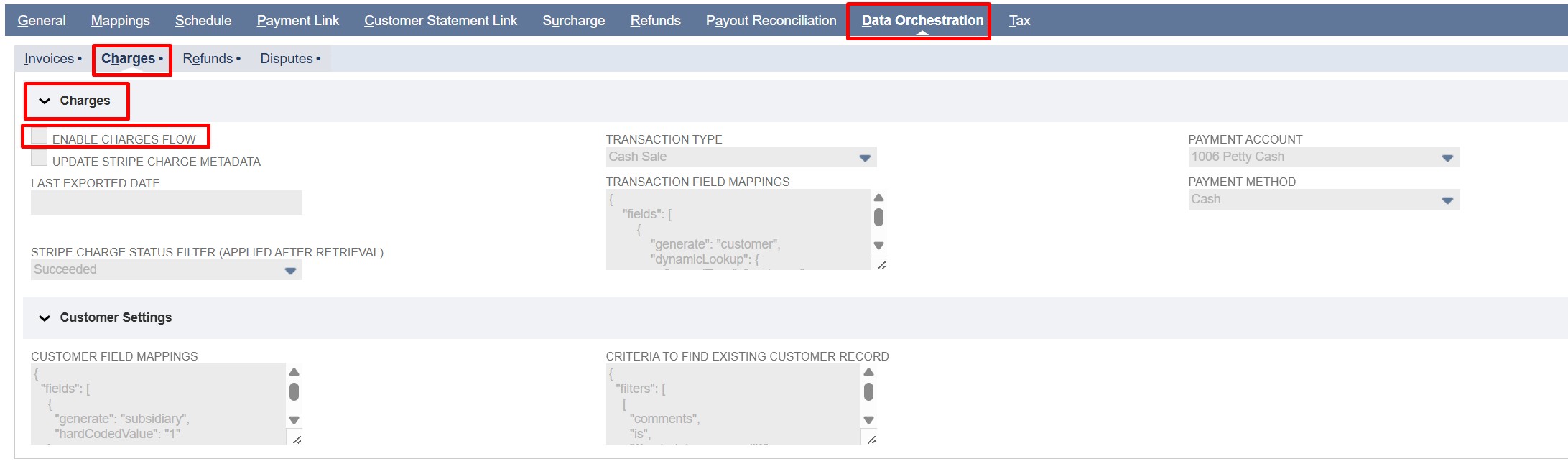
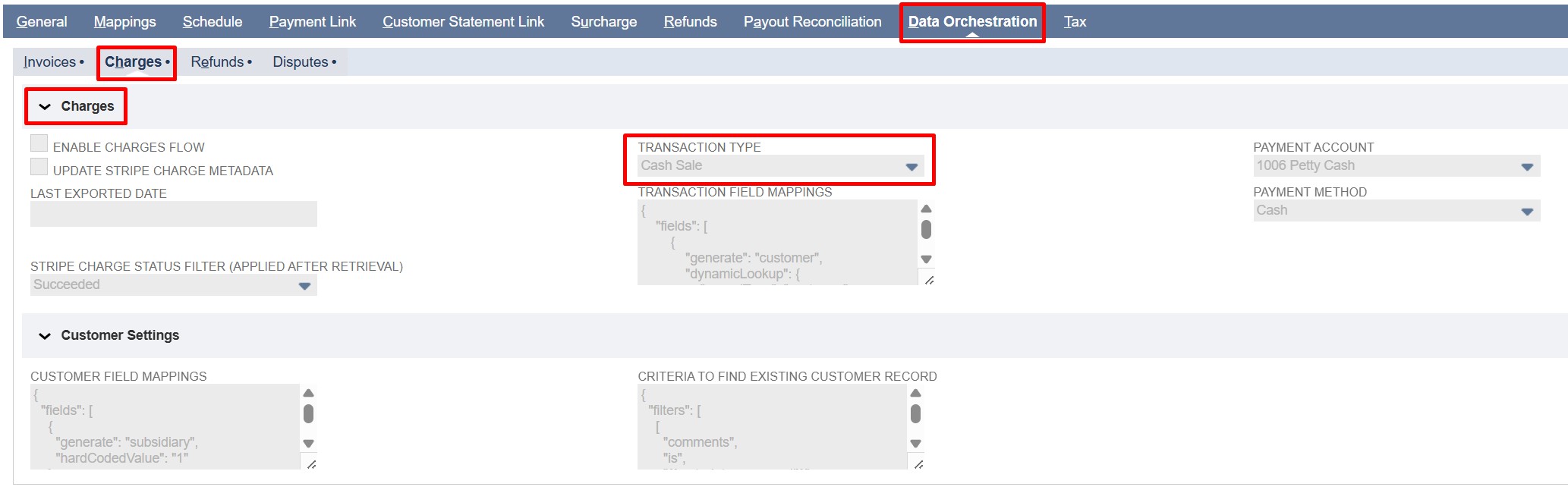
All charge settings are located under the Charges subtab within the Data Orchestration tab. In this subtab, the Charges and Customer Settings field groups contain all configuration fields required for managing the Charges flow.

Note: Click any field label in the Charges and Customer Settings field groups to see a description of its purpose and usage.

Field Descriptions

  • Enable Charges Flow: Check/mark to enable importing Stripe charges into NetSuite. Uncheck to stop all charge imports.

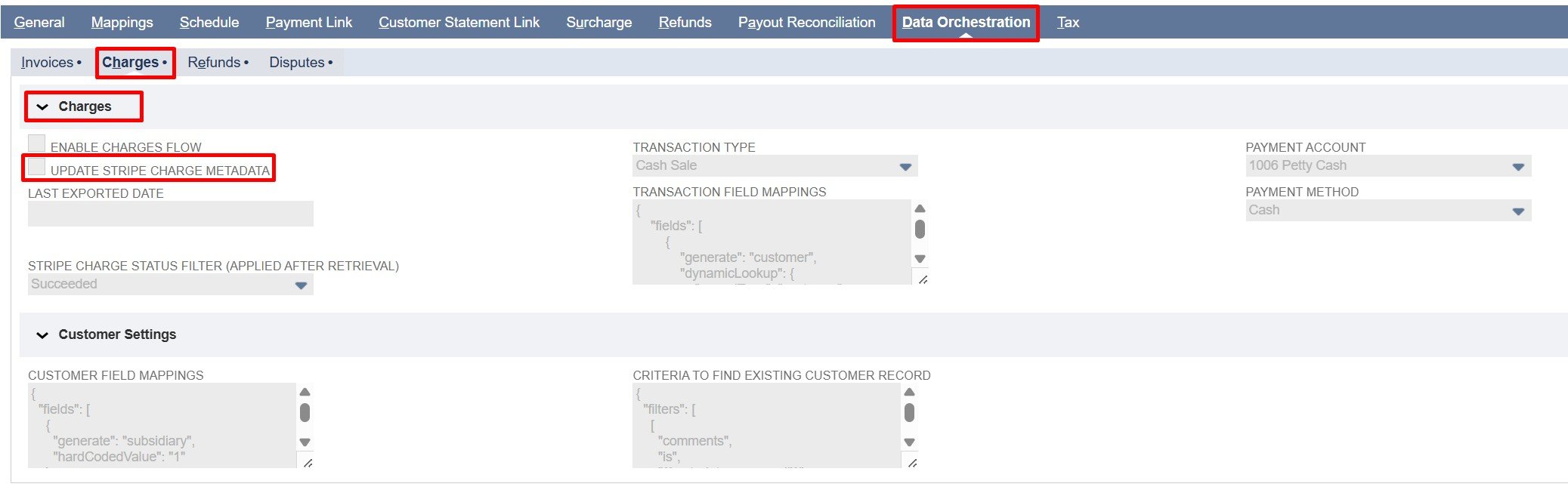
  • Update Stripe Charge Metadata: Check/mark to automatically write the NetSuite Selected Transaction Record’s Internal ID back to the corresponding Stripe charge after it is created.

  • Last Exported Date: Shows the last time charges were imported from Stripe (in Unix timestamp). This value is used in the next import to fetch only charges created after this time using the created[gte] parameter.
    Note: The system updates this field after every flow execution, and it is read-only.

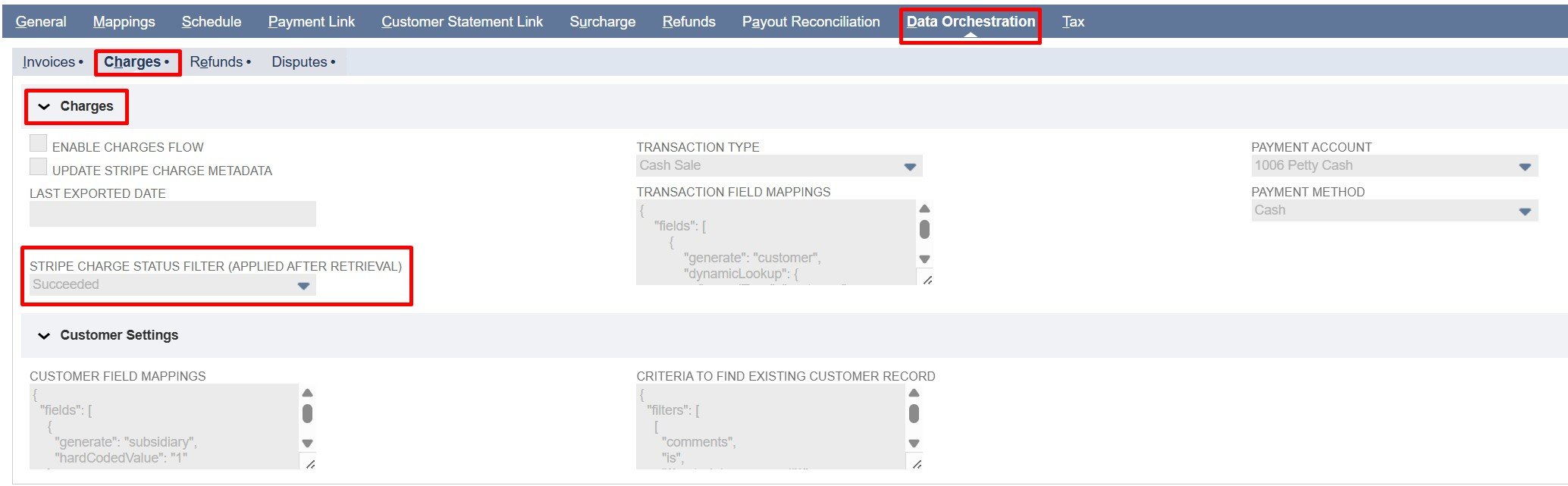
  • Stripe Charge Status Filter (Applied after retrieval): Stripe charges with status Succeeded are imported. This field specifies which charge status is allowed for processing after retrieval, ensuring that only Succeeded charges are synced to NetSuite.
    Note: The value is set to Succeeded and is read-only.

  • Transaction Type: Determines which NetSuite transaction type is created for each imported Stripe charge. Choose between Cash Sale, Customer Payment, or Customer Deposit based on your accounting workflow.

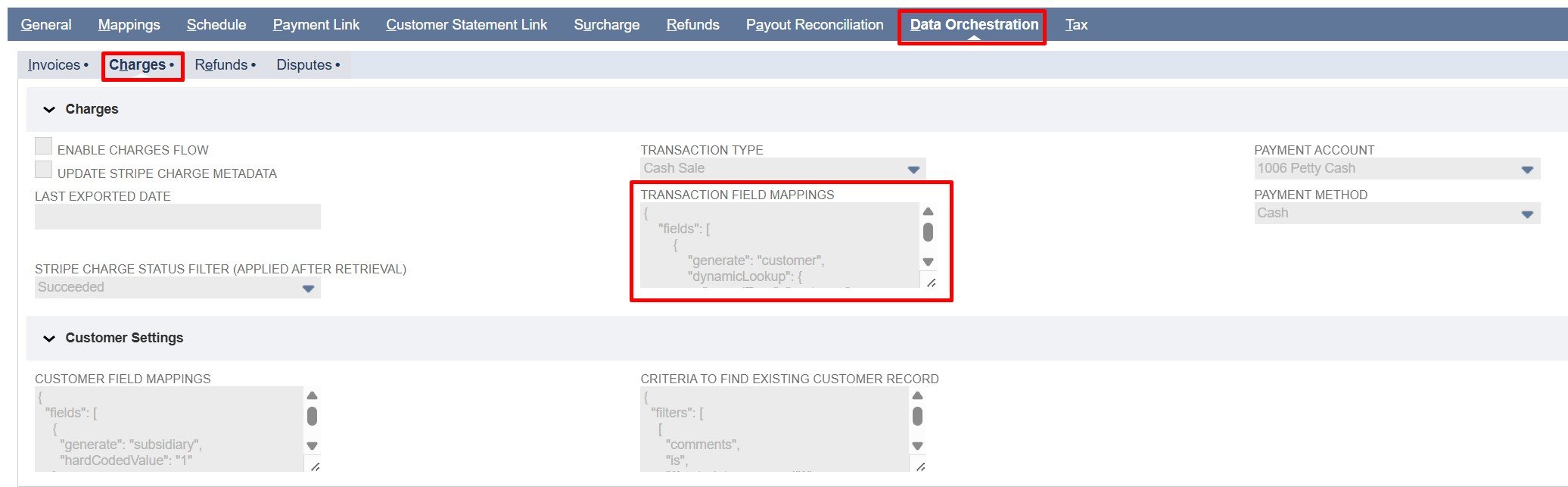
  • Transaction Field Mappings: Controls how Stripe Charge fields are mapped to NetSuite transaction fields (Cash Sale, Customer Payment, or Customer Deposit) and allows you to include related customer data from the associated Stripe customer.
    Note: Fields from the Stripe charge object can be used. 
    Associated customer data is available via stripeCustomerData (e.g., stripeCustomerData.idstripeCustomerData.email). 
    The NetSuite Customer record ID is available as nsCustomerId and can be used to link the transaction to the corresponding NetSuite customer. 
    Refer to the Sample Field Mappings section for guidance on linking the NetSuite Customer Record ID.

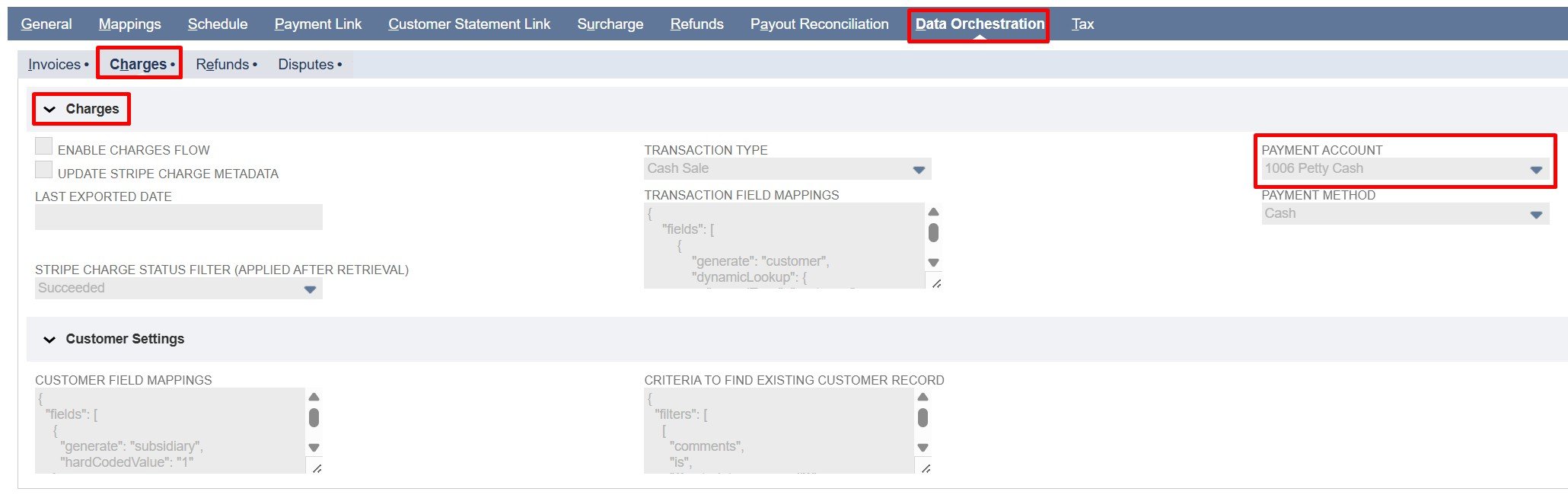
  • Payment Account: Select the NetSuite account where Stripe payments will be recorded. All imported payments are posted to this account.

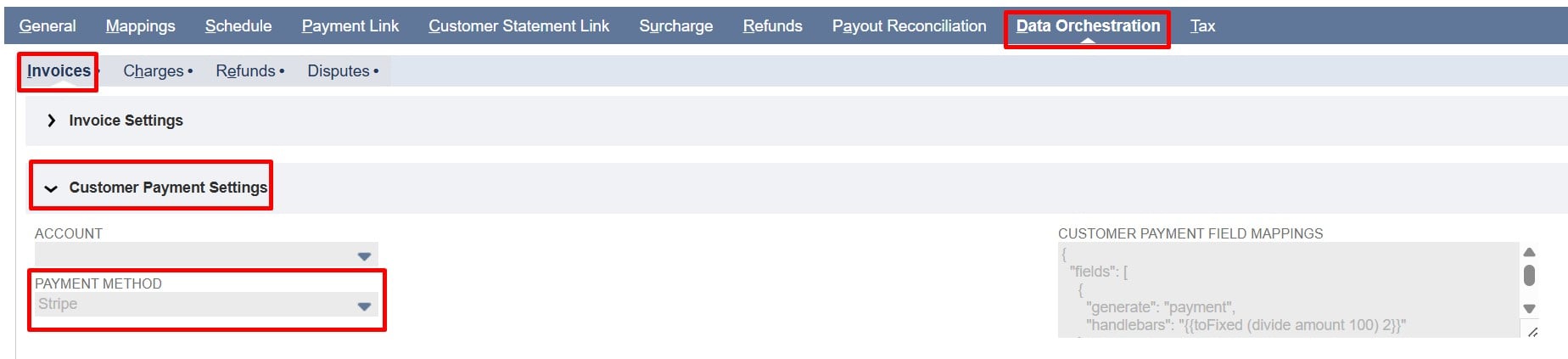
  • Payment Method: Select the payment method in NetSuite for recording Stripe payments.
    Note: To use condition-based mapping, leave the Payment Account and Payment Method fields empty and use static or dynamic mapping. Filling in these fields sets a global default that overrides any conditional logic in the Transaction Field Mappings.
    Refer to the Field Mapping Documentation for examples and detailed instructions on implementing conditional mappings.
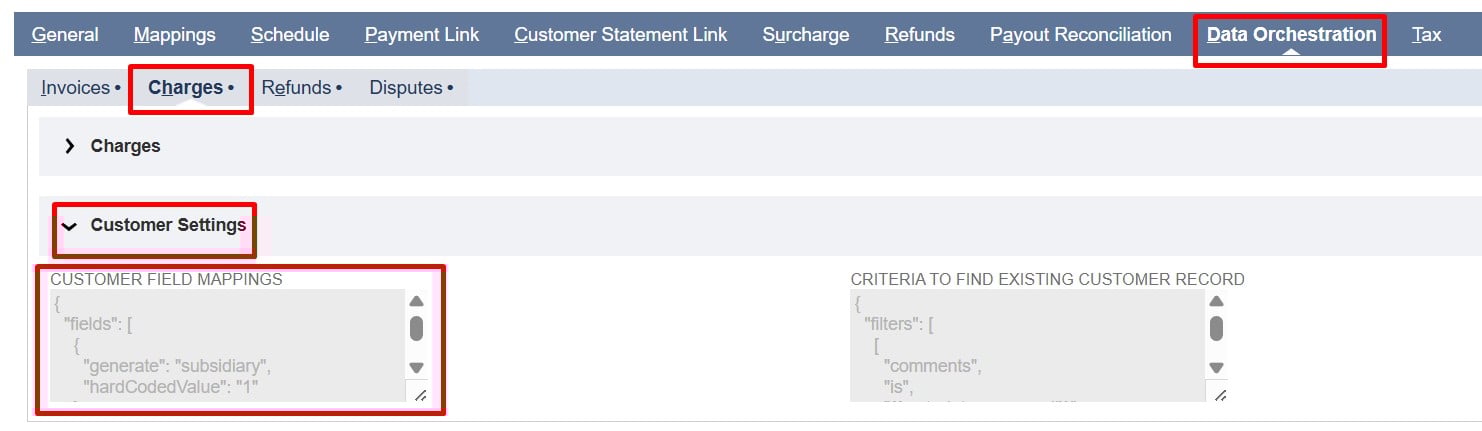
  • Customer Field Mappings:
     Controls how Stripe Customer fields are mapped to NetSuite Customer fields
    Note: Only fields from the Stripe customer object can be used.

Implementation Details:

The following steps are shared across Batch and On-Demand that explain how Stripe data is imported into NetSuite.

  1. Get Charges: 

  • Fetches charges from the Stripe API.

  • Skips charges already present in NetSuite using the Stripe Charge Id (PayPack) field on the transaction records (Cash Sale, Customer Payment, or Customer Deposit).

  • Conditions:

    • Process only charges that have a status of succeeded and have no Stripe Invoice and no Order Reference in the payment details.

    • Use the Last Exported Date field for incremental sync. (initially set on the Batch script)

    • Use the Stripe Charge IDs field to import specific charges. (On-Demand) 

  1. Get the Transaction type from PayPack Configuration:

  • Retrieve the NetSuite transaction type defined in the PayPack configuration. This value determines which NetSuite record type (Cash Sale, Customer Payment, or Customer Deposit) the Stripe charge will be mapped to.

  • Conditions:

    • A transaction type must be configured. If the transaction type is missing, the charge cannot be processed.

  1. Get Customer:

  • Fetches customer information from Stripe based on the Stripe Customer ID included in the Stripe charge details.

  1. Create Customer Record:

  • Checks if a Stripe customer exists in NetSuite via the Stripe Customer Id (PayPack) field OR the Email field on the record.

  • If not found, it creates a new customer record by populating the fields through mappings.
    Note: Existing customer records in NetSuite are not modified/ updated.

  1. Create the Selected Transaction Record in NetSuite:

  • Creates the selected NetSuite transaction record (Cash Sale, Customer Payment, or Customer Deposit) with the mapped fields from the configuration.

  • Populates body fields, line items, payment method, and payment account according to configured mappings.

  • Stores the Stripe Charge ID in the Stripe Charge ID (PayPack) field of the NetSuite Cash Sale, Customer Payment, or Customer Deposit records if mapped.

  • Conditions:

    • Log each charge creation or skipped charge in the PayPack Flow Record Log.

Note: Refer to the Sample Field Mappings of Cash Sale, Customer Payment, and Customer Deposit. Also, for detailed JSON mapping examples and instructions, refer to the Field Mapping Documentation.

  1. Update Stripe Metadata: 

  • Updates the Stripe Charge with the resulting NetSuite Record ID using the appropriate metadata key based on the transaction type (Cash Sale, Customer Payment, Customer Deposit).

  • Conditions:

    • Skip if the Update Stripe Charge Metadata checkbox is disabled in the configuration.

  1. PayPack Logging Structure:
    The custom records (PayPack Flow Status Log and PayPack Flow Record Log) together provide full traceability, help identify failed or skipped records, and support auditing for all Data Orchestration flows.

  • PayPack Flow Status Log: This custom record logs the overall progress of a flow, including start/end times, total records processed, errors or ignored records, and final status. It gives a clear summary for monitoring and auditing purposes.

  • PayPack Flow Record Log: This record tracks individual Stripe records processed in a flow, including the Stripe ID, related NetSuite transaction or customer, Stripe API responses, errors, and optional notes. Each log is linked to the Flow Status Log for context.


Script-Specific Details:

  • Batch / MapReduce Script:

    • Processes charges in batches based on creation date greater than or equal to the last exported date or start date.

    • On the first run, when there is no Last Exported Date recorded, the script uses the Charge Start Date parameter on the deployment record as the starting point for fetching charges.

    • For all subsequent runs, the script uses the Last Exported Date (the date of the most recent successful export) to identify and process only new charges created after that date.

    • This ensures that charges are fetched incrementally without duplication across runs.

    • The script runs on a scheduled basis, automatically executing at defined intervals to keep Stripe and NetSuite synchronized.

    • Parameters:

      • Stripe Account Id (custscript_pp_stripe_chr_account_id) – This parameter tells the script which Stripe account to use during a run and matches the internal ID of the PayPack Stripe Account Configuration custom record in NetSuite.

      • Charge Start Date (custscript_pp_charge_start_date) – Indicates the earliest date for fetching charges, used only on the first execution or if no previous Last Exported Date (found in the Configuration) exists. This value must be entered manually as a timestamp (for example, 1761147332) representing seconds since the Unix epoch. (Upon completion of a flow, the Last Exported Date is automatically updated.)

  • On-Demand MapReduce Script:

    • Charges are processed based on the specified Stripe Charge IDs.

    • Primarily used to import missing charges.

    • Runs only when triggered by the user.

    • Parameters:

      • Stripe Account Id (custscript_pp_stripe_od_chr_account_id) –  This parameter tells the script which Stripe account to use during a run and matches the internal ID of the PayPack Stripe Account Configuration custom record in NetSuite.

      • Stripe Charge IDs (custscript_pp_od_stripe_charge_ids) – This field accepts a comma-separated list of specific charges, with multiple Stripe Charge IDs at a time.

Sample Field Mappings:

  1. Sample Cash Sale Field Mappings:
1{
2  "fields": [
3     {
4      "generate": "entity",
5      "extract": "nsCustomerId"
6    },
7    {
8      "generate": "location",
9      "hardCodedValue": "2"
10    },
11    {
12      "generate": "custbody_nm_stripe_dcharge_id",
13      "extract": "id"
14    }
15  ],
16  "sublist": {
17    "item": [
18      {
19        "generate": "item",
20        "hardCodedValue": "502"
21      },
22      {
23        "generate": "quantity",
24        "hardCodedValue": "1"
25      },
26      {
27        "generate": "price",
28        "hardCodedValue": "-1"
29      },
30      {
31         "generate": "amount",
32        "handlebars": "{{toFixed (divide amount 100) 2}}"
33      },
34      {
35        "generate": "taxcode",
36        "hardCodedValue": "-7"
37      }
38    ]
39  }
40}
  1. Sample Customer Payment Field Mappings:
1{
2  "fields": [
3      {
4      "generate": "customer",
5      "extract": "nsCustomerId"
6    },
7    {
8      "generate": "payment",
9      "handlebars": "{{toFixed (divide amount 100) 2}}"
10    },
11    {
12      "generate": "paymentmethod",
13      "hardCodedValue": "10"
14    },
15    {
16      "generate": "account",
17      "hardCodedValue": "2"
18    },
19    {
20      "generate": "custbody_nm_stripe_dcharge_id",
21      "extract": "id"
22    }
23  ]
24}


  1. Sample Customer Deposit Field Mappings:
1{
2  "fields": [
3     {
4      "generate": "customer",
5      "extract": "nsCustomerId"
6    },
7    {
8      "generate": "payment",
9      "handlebars": "{{toFixed (divide amount 100) 2}}"
10    },
11    {
12      "generate": "location",
13      "hardCodedValue": "2"
14    },
15    {
16      "generate": "paymentmethod",
17      "hardCodedValue": "10"
18    },
19    {
20      "generate": "account",
21      "hardCodedValue": "2"
22    },
23    {
24      "generate": "custbody_nm_stripe_dcharge_id",
25      "extract": "id"
26    }
27  ]
28}


PayPack - Stripe to NetSuite Refunds Import 

Overview:

This integration automatically syncs Stripe refunds into NetSuite via PayPack, including all related Creditmemo and Customer Refunds details.

Refunds can be imported in two ways:

  • Batch Import – Scheduled sync of multiple refunds.

  • On-Demand Import – Manually import specific refunds using their IDs.

All methods use the same PayPack configuration, ensuring consistent, accurate, and transparent refund processing.


Key Features:

Automated Refund Synchronization:

  • Automatically creates NetSuite records—Credit Memos and Customer Refunds—from Stripe data.

  • Ensures accurate data and eliminates the need for manual reconciliation.

Configurable Execution Modes:

  • Supports Batch (Scheduled) and On-Demand (Manual) flows.

  • All modes use the same configuration and mapping, keeping field mapping consistent.

Centralized Configuration and Mappings:

  • Driven by PayPack Flow Configuration and Mapping records.

  • Instructions for adding or updating field mappings are available in the Field Mapping Documentation. The Sample Field Mappings section at the end of this document provides additional guidance.

Comprehensive Logging and Error Tracking:

  • Keeps detailed logs in PayPack Flow Record Logs and PayPack Flow Status Logs.

  • Helps quickly identify and resolve issues during or after synchronization.

Configuration Settings:

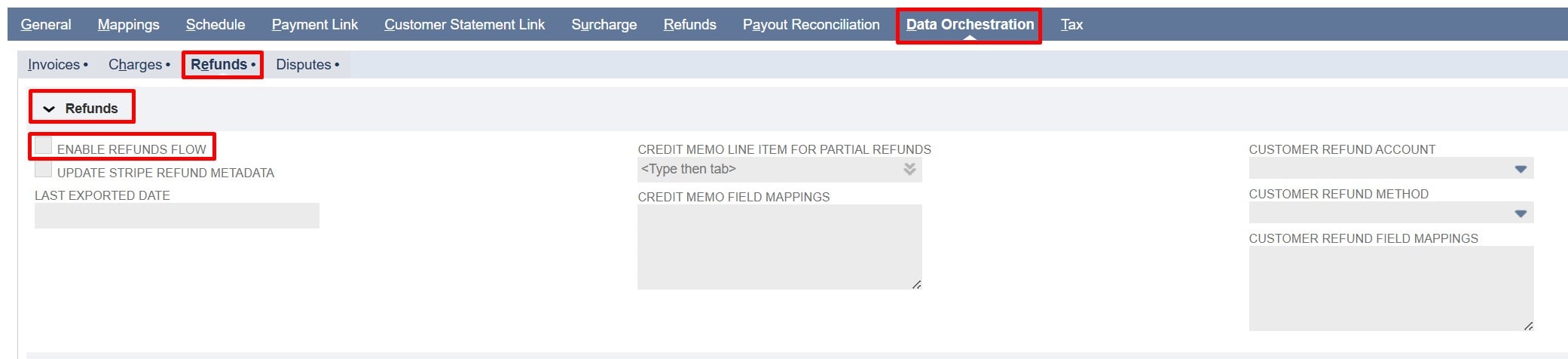
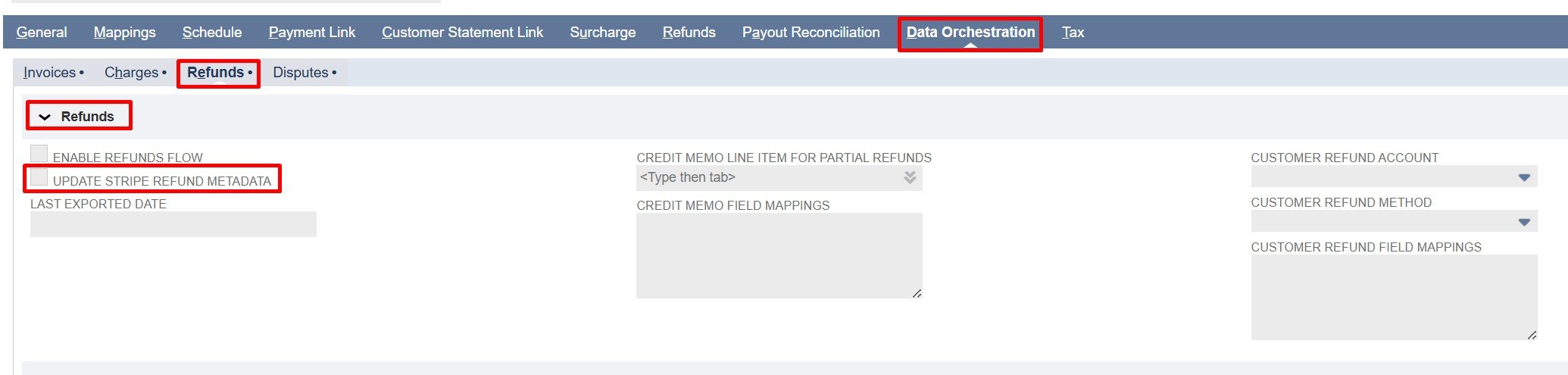
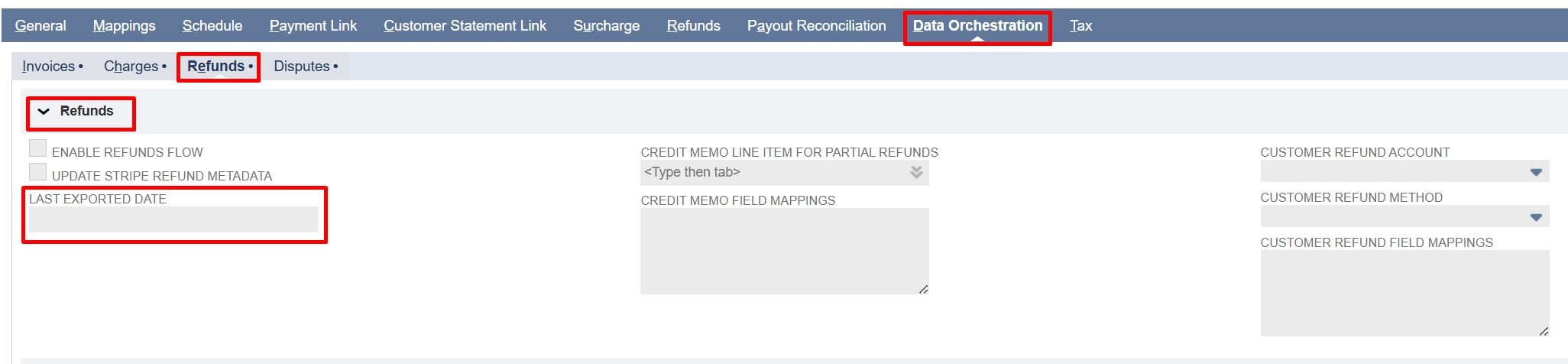
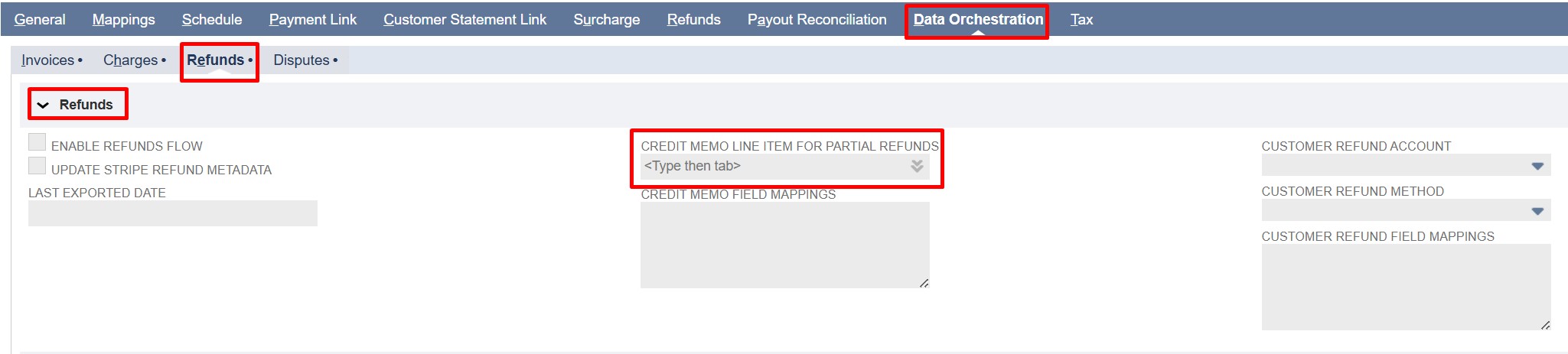
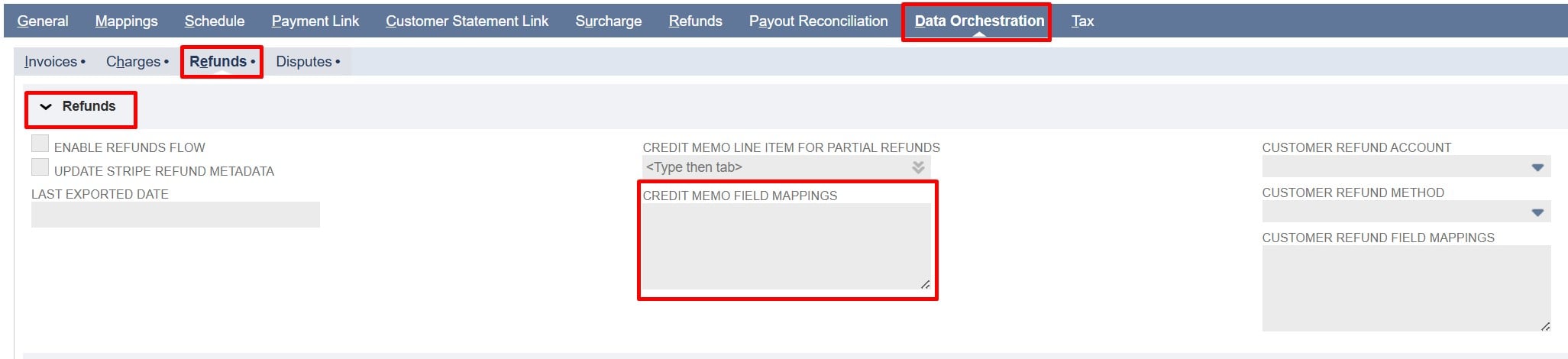
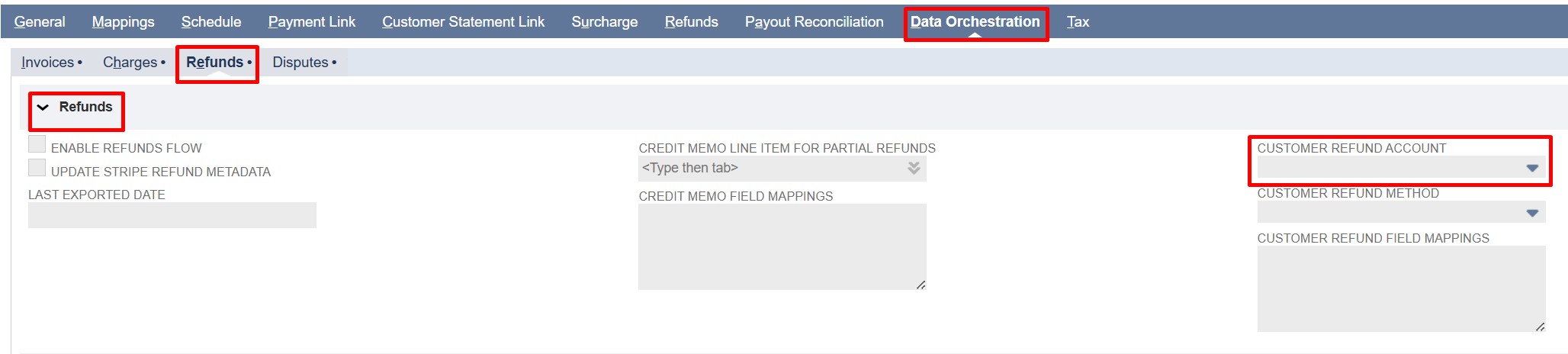
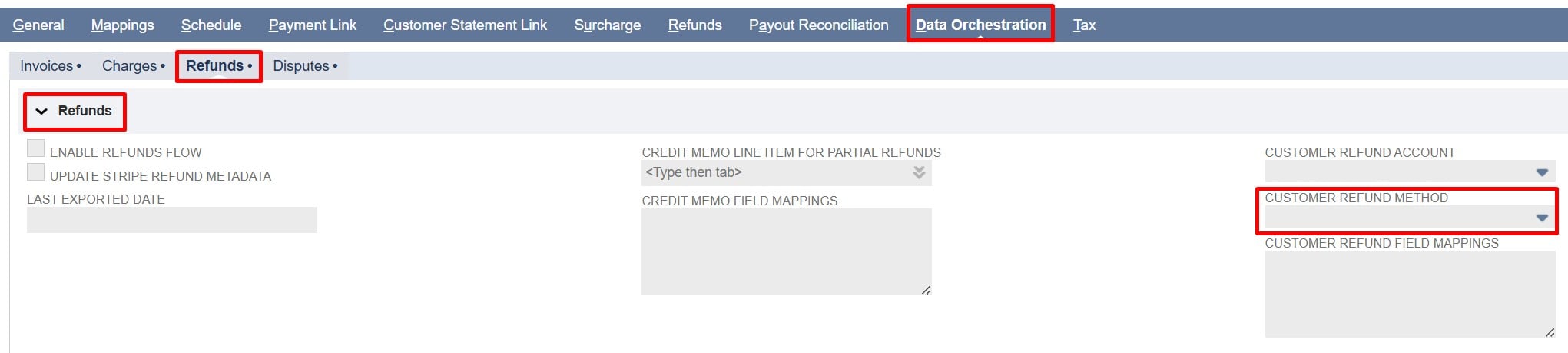
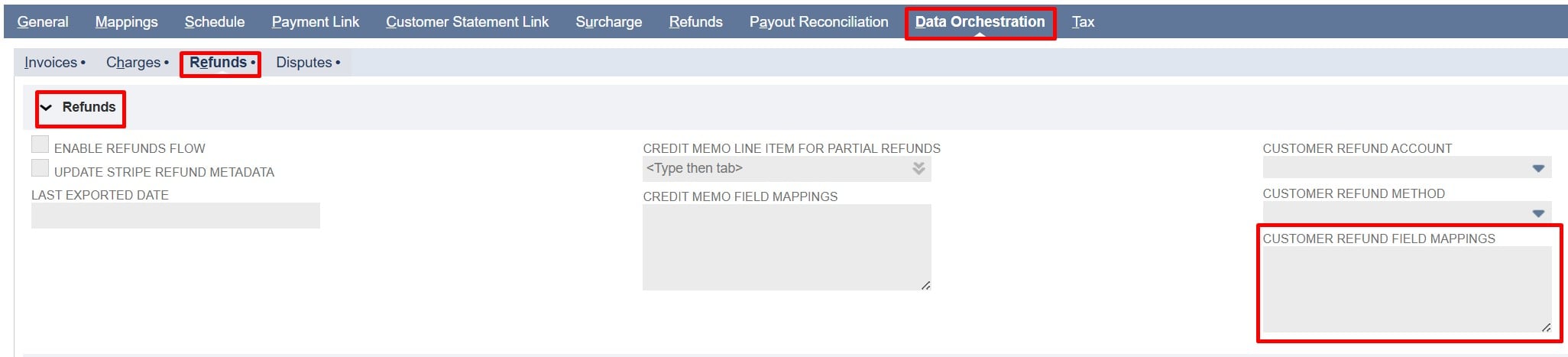
All refund settings are located under the Refunds subtab within the Data Orchestration tab. Inside this subtab, the Refunds field group contains all configuration fields required for managing the Refunds flow.

Note: Click any field label in the Refunds field group to see a description of its purpose and usage.

Field Descriptions

  • Enable Refunds Flow: Check/mark to enable importing Stripe refunds into NetSuite. Uncheck to stop all refunds imports.

  • Update Stripe Refund Metadata: Check/mark to automatically write the NetSuite Customer Refund Internal ID back to the corresponding Stripe refund after it is created.

  • Last Exported Date: Shows the last time refunds were imported from Stripe (in Unix timestamp). This value is used in the next import to fetch only refunds created after this time using the created[gte] parameter.
    Note: This field is updated by the system after every flow execution and is read-only.

  • Credit memo Line Item for Partial Refunds: Maps the total Stripe partial refund amount to the selected NetSuite item. Regardless of the number of lines on the Stripe invoice, only one line will be added to the NetSuite Credit Memo for partial refunds.


Configuring Items for Partial Refunds

For partial refunds, the item used on the Credit Memo is based on this priority order:

  • If the “Credit Memo Line Item for Partial Refunds” is configured, a single line is added to the Credit Memo with that item, and the partial refund amount from Stripe is applied to this item.

  • If the “Credit Memo Line Item for Partial Refunds” is not configured, the first invoice line item  is used, regardless of whether the invoice has one line or multiple lines.

Note: Item mappings are not mandatory. Even if item mappings are provided, either the configured “Credit Memo Line Item for Partial Refunds” item or the first invoice line item will be used.

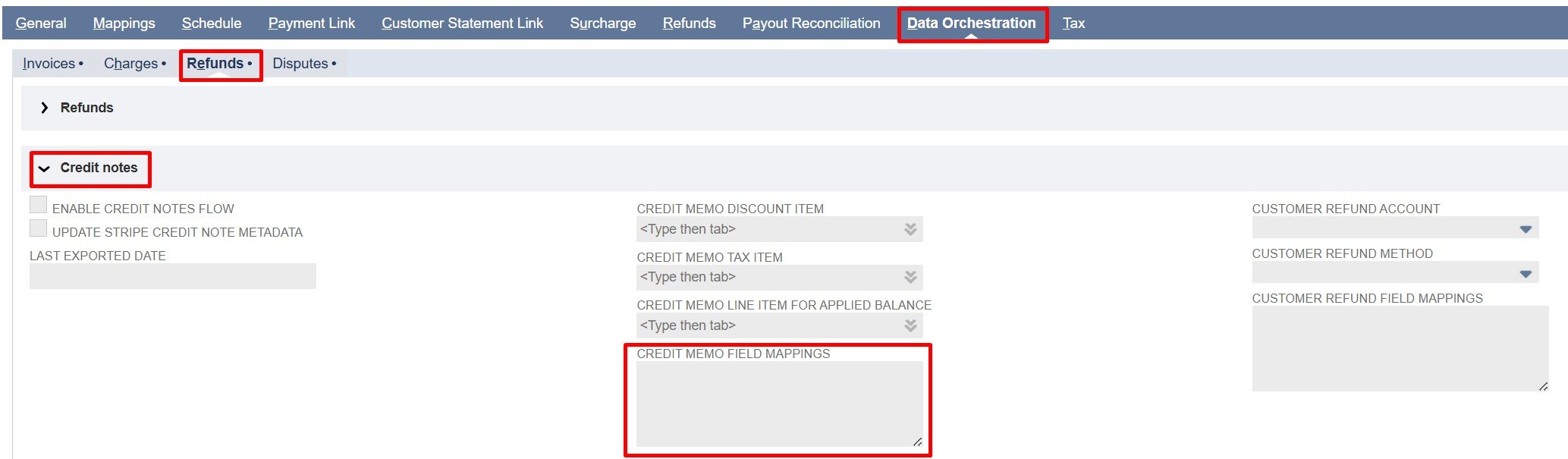
  • Credit Memo Field Mappings: Controls how Stripe Refund fields are mapped to NetSuite Credit Memo fields.
    Note: Fields from the Stripe refund object can be used.
    Refer to the Sample Credit Memo Field Mappings at the end of this document for reference. Also, for detailed JSON mapping examples and instructions, refer to the Field Mapping Documentation.

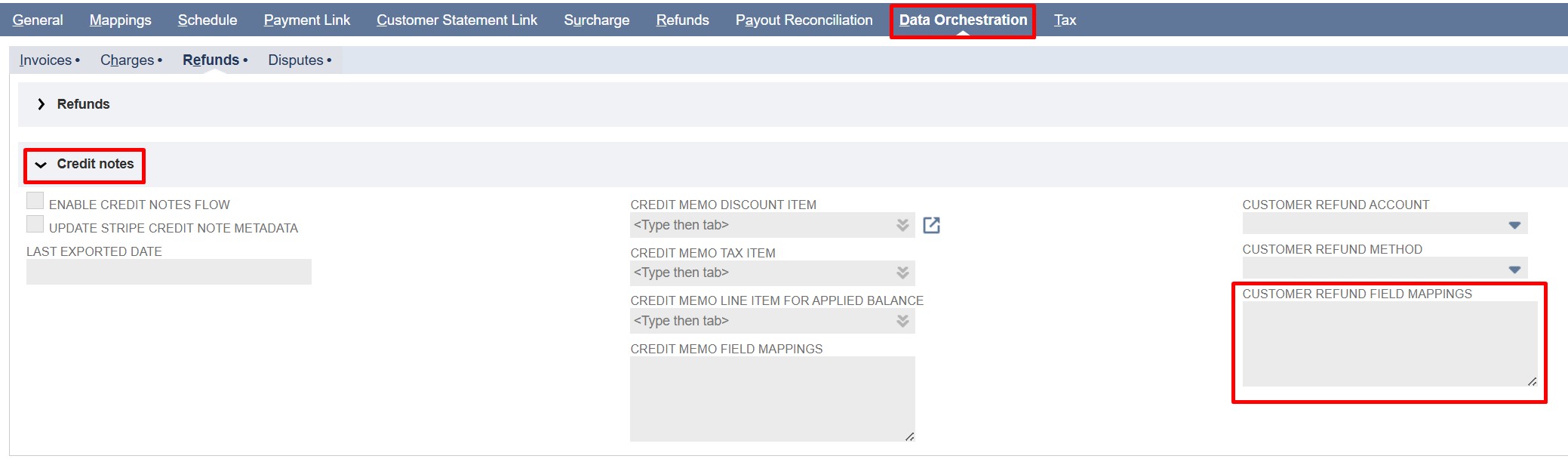
  • Customer Refund Account: Select the NetSuite account where customer refunds will be recorded. All imported Stripe refunds are posted to this account.

    Note: To use condition-based mapping, leave the Customer Refund Account field empty and use static or dynamic mapping. Filling in this field sets a global default that overrides any conditional logic in the Customer Refund Field Mappings.

  • Customer Refund Method: Select the refund method in NetSuite for recording Stripe refunds.

Note: To use condition-based mapping, leave the Customer Refund Method field empty and use static or dynamic mapping. Filling in this field sets a global default that overrides any conditional logic in the Customer Refund Field Mappings.

  • Customer Refund Field Mappings: Controls how Stripe Refund fields are mapped to NetSuite Customer Refund fields. This includes applying the Credit Memo created, using the configured sublist mappings, which reference the generated NetSuite Credit Memo ID.
    Note: Fields from the Stripe refund object can be used. The NetSuite Credit Memo record ID can be accessed in mappings as a nsCreditMemoId.
    Refer to the Sample Customer Refund Field Mappings at the end of this document for reference on how to correctly apply a Credit Memo to a Customer Refund. Also, for detailed JSON mapping examples and instructions, refer to the Field Mapping Documentation.

Implementation Details:

The following steps are shared across Batch and On-Demand that explain how Stripe data is imported into NetSuite.

  1. Get Refunds: 

  • Fetches Refunds using the Stripe API 

  • Skips refunds already present in NetSuite using the Stripe Refund Id (PayPack) field on the credit memo record.

  • Conditions:

    • Use the Last Exported Date field for incremental sync. (initially set on the Batch script)

    • Use the Stripe Refund IDs field to import specific refunds (On-Demand) 

  1. Identify Related Invoice:

  • Stripe refunds do not include the Stripe Invoice ID, so the flow identifies the related NetSuite Invoice by retrieving the Stripe Payment Intent from the refund and using its Payment Intent ID (PayPack) to locate the corresponding NetSuite Customer Payment.

  • From the Customer Payment, retrieving:

    • The associated NetSuite Invoice ID

    • The invoice total amount

  • Conditions:

    • If no Customer Payment is found or if the Customer Payment has no linked Invoice, the refund processing is skipped.

  1. Retrieve the NetSuite Invoice Line Items:

  • Using the NetSuite Invoice ID obtained from the previous step, the flow performs a separate NetSuite lookup(search) to retrieve the invoice line items to determine the item for partial refund creation.

  1. Identify Refund Type:

  • The flow determines whether the Stripe refund represents a full or partial refund by comparing the refund amount with the NetSuite Invoice total amount.

  • Conditions:

    • The refund is treated as a partial refund when the refund amount < the invoice total.

  1. Create Credit Memo Record:

  • Transforms the NetSuite Invoice into a Credit Memo and applies all configured field mappings.

  • Populates line items based on the refund type. (Full or Partial refund)

  • Stores the Stripe Refund ID in the Stripe Refund ID (PayPack) field of the NetSuite Credit Memo record if mapped.

  • Note: Refer to the Sample Credit Memo Mappings for detailed mapping configurations. Also, for detailed JSON mapping examples and instructions, refer to the Field Mapping Documentation.

  • Conditions:

    • For full refunds, all transformed invoice line items are preserved without modification.

    • For partial refunds:

      • If the “Credit Memo Line Item for Partial Refunds” field is configured, then it is used as a line item on the Credit Memo, reflecting the partial refund amount.

      • If the “Credit Memo Line Item for Partial Refunds” is not configured, then the first invoice line item is used, regardless of whether the invoice has one line or multiple lines.

      • Item-level mappings are optional. Even if mappings are provided, the Credit Memo line item will always use either the configured “Credit Memo Line Item for Partial Refunds” item or the first invoice line item.
        Note: If any required or custom line-level field mappings need to be mapped, then those fields must be populated through the item-level mappings. If the required values are not mapped, the Credit Memo creation will fail due to missing mandatory field values.

  • Log each refund creation or skipped refund in the PayPack Flow Record Log.

  1. Create Customer Refund Record:

  • Creates a NetSuite Customer Refund after the Credit Memo is generated.

  • A credit memo is applied to the corresponding Customer Refund through the sublist mappings, which define how the credit memo is linked and applied during import. 

  • Note: Refer to the Sample Customer Refund Mappings for detailed sublist mapping configurations on how to correctly apply a credit memo to a customer refund. Also, for detailed JSON mapping examples and instructions, refer to the Field Mapping Documentation.

  • Populates fields such as customer, amount, and Stripe Refund ID (PayPack) based on field mappings.

  1. Update Stripe Metadata:

  • Updates the Stripe Refund Metadata with the created NetSuite Customer Refund Record ID.

  • Conditions: 

    • Skip if the Update Stripe Refund Metadata checkbox is disabled in the configuration.

  1.  PayPack Logging Structure:
    The custom records (PayPack Flow Status Log and PayPack Flow Record Log) together provide full traceability, help identify failed or skipped records, and support auditing for all Data Orchestration flows.

  • PayPack Flow Status Log: This custom record logs the overall progress of a flow, including start/end times, total records processed, errors or ignored records, and final status. It gives a clear summary for monitoring and auditing purposes.

  • PayPack Flow Record Log: This record tracks individual Stripe records processed in a flow, including the Stripe ID, related NetSuite transaction or customer, Stripe API responses, errors, and optional notes. Each log is linked to the Flow Status Log for context.

Script-Specific Details:

  • Batch / MapReduce Script:

    • Processes refunds in batches based on creation date greater than or equal to the last exported date or start date.

    • On the first run, when there is no Last Exported Date recorded, the script uses the Refund Start Date parameter on the deployment record as the starting point for fetching refunds.

    • For all subsequent runs, the script uses the Last Exported Date (the date of the most recent successful export) to identify and process only new refunds created after that date.

    • This ensures that refunds are fetched incrementally without duplication across runs.

    • The script runs on a scheduled basis, automatically executing at defined intervals to keep Stripe and NetSuite synchronized.

    • Parameters:

      • Stripe Account Id (custscript_pp_refund_stripe_account_id) – This parameter tells the script which Stripe account to use during a run and matches the internal ID of the PayPack Stripe Account Configuration custom record in NetSuite.

      • Refund Start Date (custscript_pp_refund_start_date) – Indicates the earliest date for fetching refunds, used only on the first execution or if no previous Last Exported Date (found in the Configuration) exists. This value must be entered manually as a timestamp (for example, 1761147332) representing seconds since the Unix epoch. (Upon completion of a flow, the Last Exported Date is automatically updated.)

  • On-Demand MapReduce Script:

    • Refunds are processed based on the specified Stripe Refund IDs.

    • Primarily used to import missing refunds.

    • Runs only when triggered by the user.

    • Parameters:

      • Stripe Account Id (custscript_pp_od_ref_stripe_account_id) –  This parameter tells the script which Stripe account to use during a run and matches the internal ID of the PayPack Stripe Account Configuration custom record in NetSuite.

      • Stripe Refund IDs (custscript_pp_od_stripe_refund_ids) – This field accepts a comma-separated list of specific refunds, with multiple Stripe Refund IDs at a time.

Sample Field Mappings:

  1. Sample Credit Memo Field Mappings:
1{
2  "fields": [
3    {
4      "generate": "location",
5      "hardCodedValue": "2"
6    },
7    {
8      "generate": "custbody_nm_pp_stripe_refund_id",
9      "extract": "id"
10    }
11  ],
12  "sublist": {
13    "item": [
14      {
15        "generate": "item",
16        "hardCodedValue": "502"
17      },
18      {
19        "generate": "quantity",
20        "hardCodedValue": "1"
21      },
22      {
23        "generate": "price",
24        "hardCodedValue": "-1"
25      },
26      {
27        "generate": "amount",
28        "handlebars": "{{toFixed (divide amountRefunded 100) 2}}"
29      },
30      {
31        "generate": "taxcode",
32        "hardCodedValue": "-7"
33      }
34    ]
35  }
36}
  1. Sample Customer Refund Field Mappings:
1{
2  "fields": [
3    {
4      "generate": "customer",
5      "dynamicLookup": {
6        "recordType": "customer",
7        "filters": [
8          [
9            "custentity_nm_stripecharge_customer_id",
10            "is",
11            "{{charge.customer}}"
12          ]
13        ],
14        "resultField": "internalid",
15        "default": ""
16      }
17    },
18    {
19      "generate": "total",
20      "handlebars": "{{toFixed (divide amountRefunded 100) 2}}"
21    },
22    {
23      "generate": "custbody_nm_pp_stripe_refund_id",
24      "extract": "id"
25    }
26  ],
27  "sublist": {
28    "apply": [
29      {
30        "generate": "apply",
31        "hardCodedValue": "T"
32      },
33      {
34        "generate": "doc",
35        "extract": "nsCreditMemoId"
36      }
37    ]
38  }
39}
40
41

PayPack – Stripe to NetSuite Credit Note Import

Overview

This integration automatically syncs Stripe Credit Notes into NetSuite via PayPack, including all related Creditmemo, and Customer Refund details.

Invoices can be imported in three ways:

  • Batch Import – Scheduled sync of multiple Credit Notes.

  • On-Demand Import – Manually import specific Credit Notes using their IDs.


All methods use the same PayPack configuration, ensuring consistent, accurate, and transparent invoice processing.

Key Features:

Automated Credit Notes Synchronization

  • Automatically creates NetSuite records Credit memo, and Customer Refund from Stripe data.

  • Ensures accurate data and eliminates the need for manual reconciliation.

Flexible Execution Modes

  • Supports Batch (Scheduled), and On-Demand (Manual) flows.

  • All modes use the same configuration and mapping, keeping field mapping consistent.


Centralized Configuration & Mappings

  • Managed through PayPack Flow Configuration and Mapping records.

  • Instructions for adding or updating field mappings are available in the Field Mapping Documentation.

Comprehensive Logging & Error Tracking

  • Keeps detailed logs in PayPack Flow Record Logs and PayPack Flow Status Logs.

  • Helps quickly identify and resolve issues during or after synchronization.

Configuration Settings:

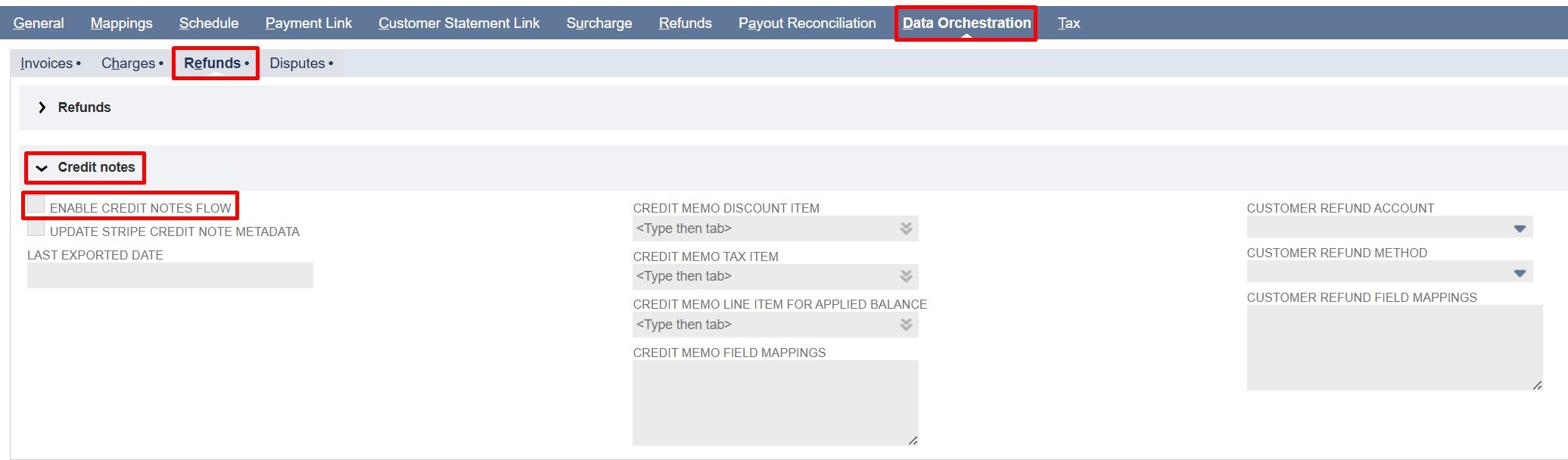
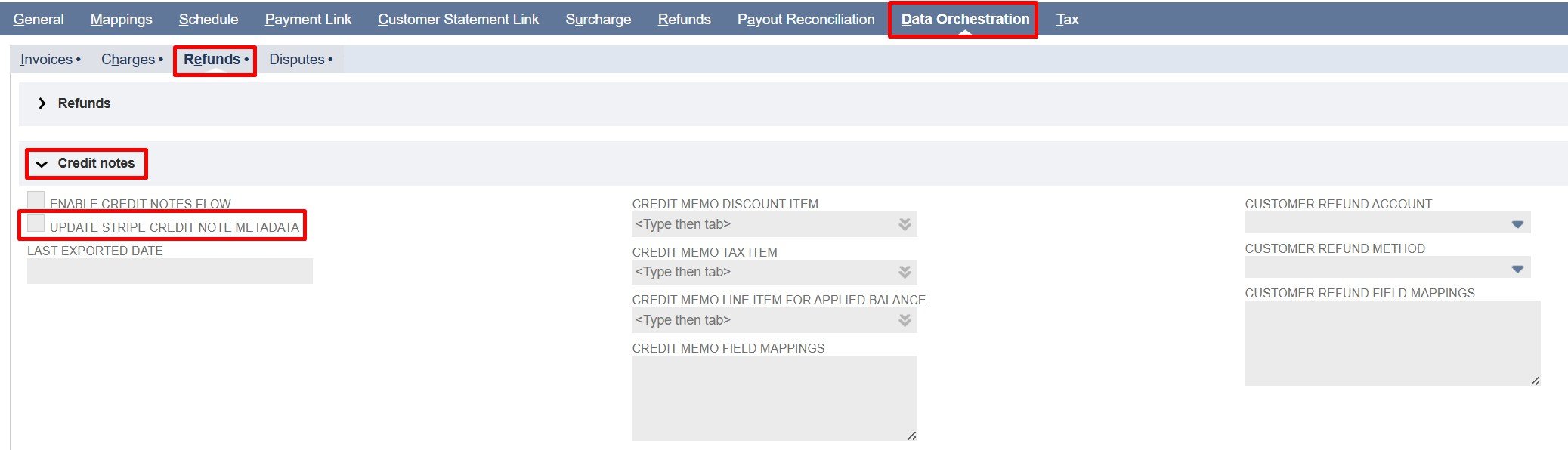
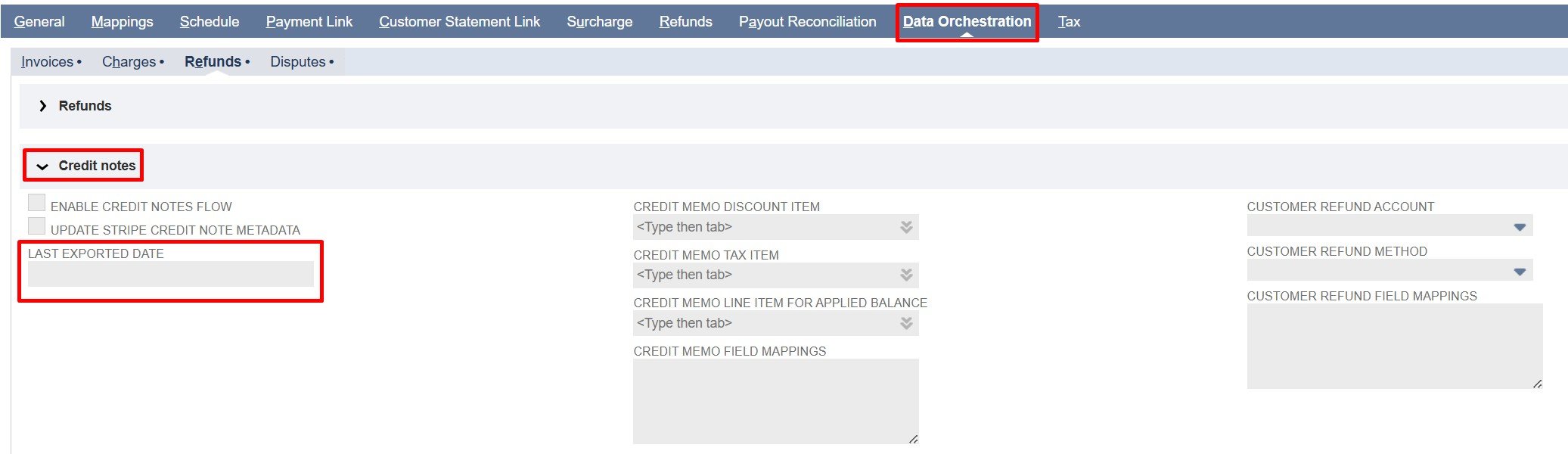
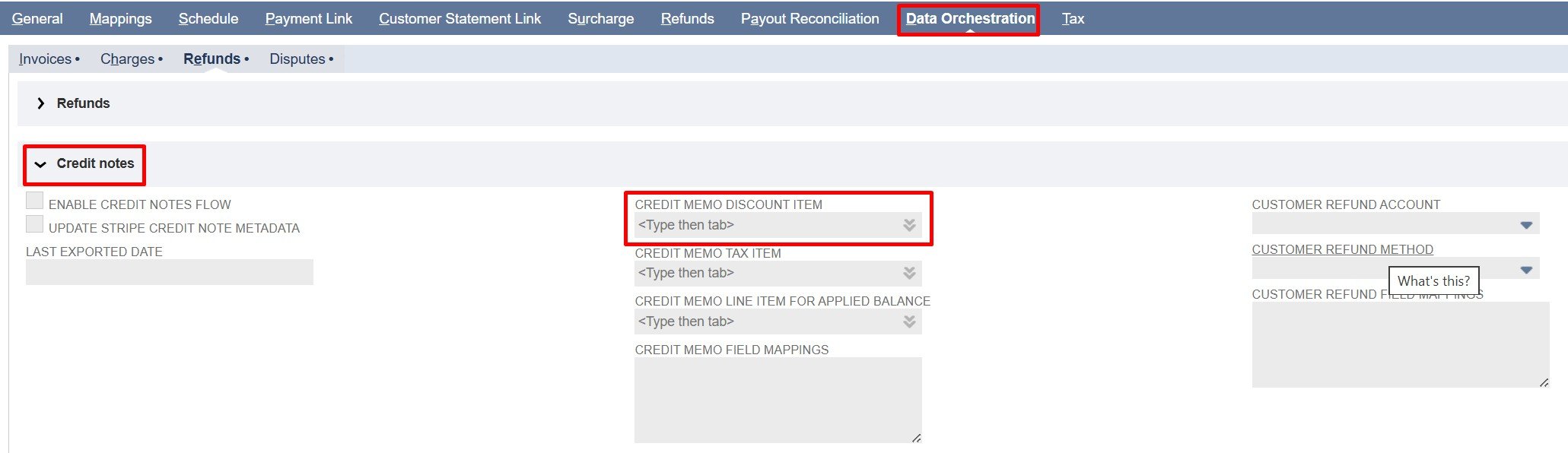
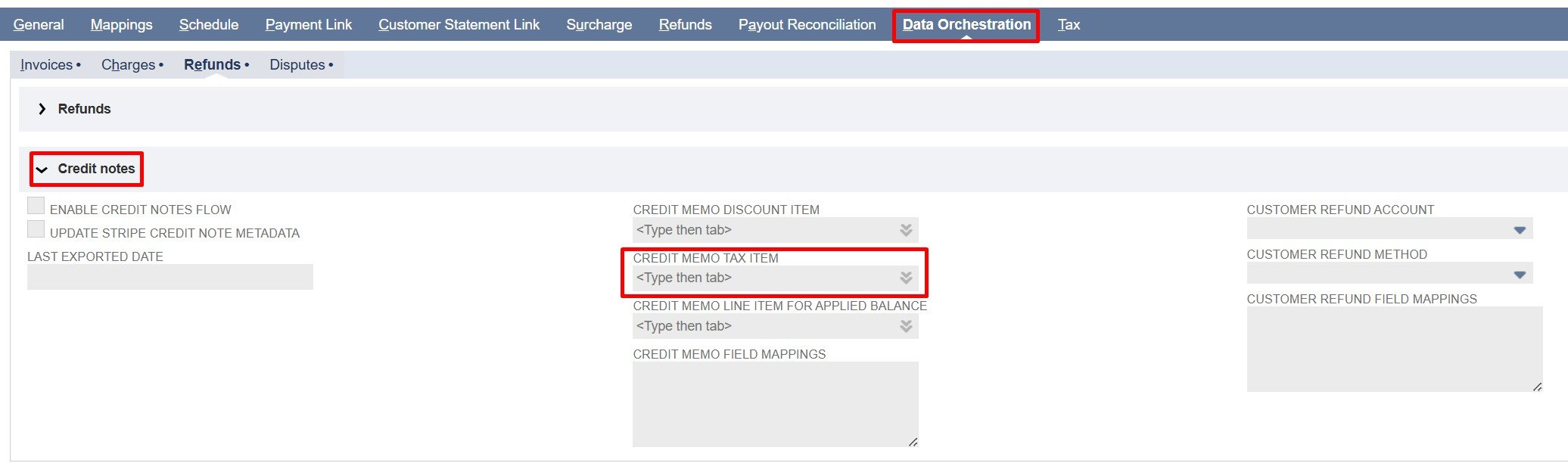
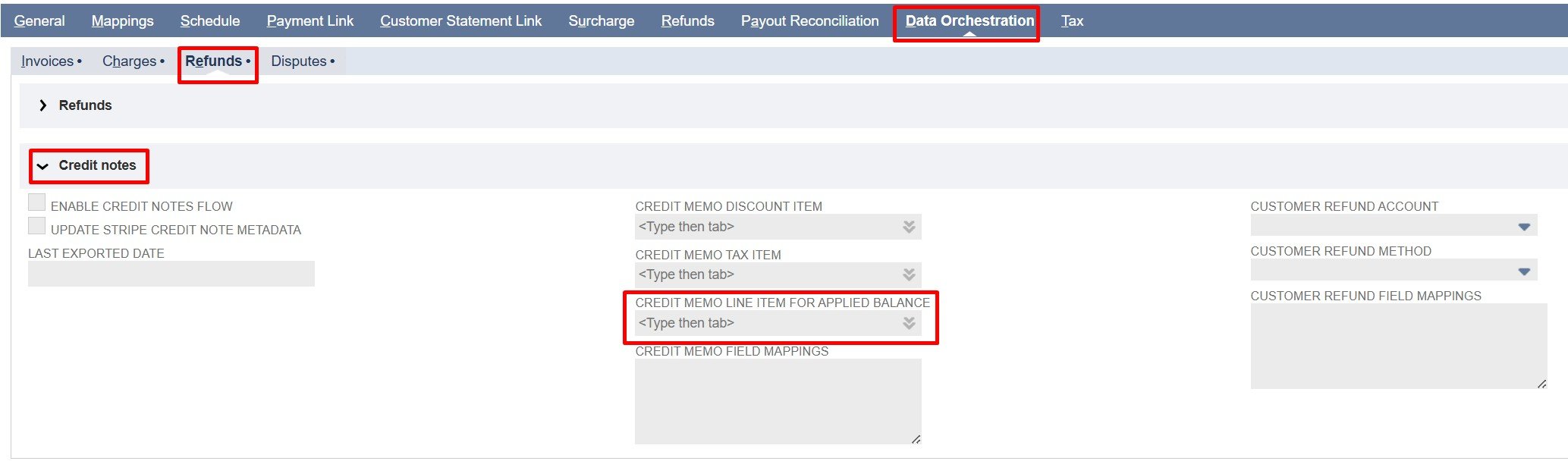
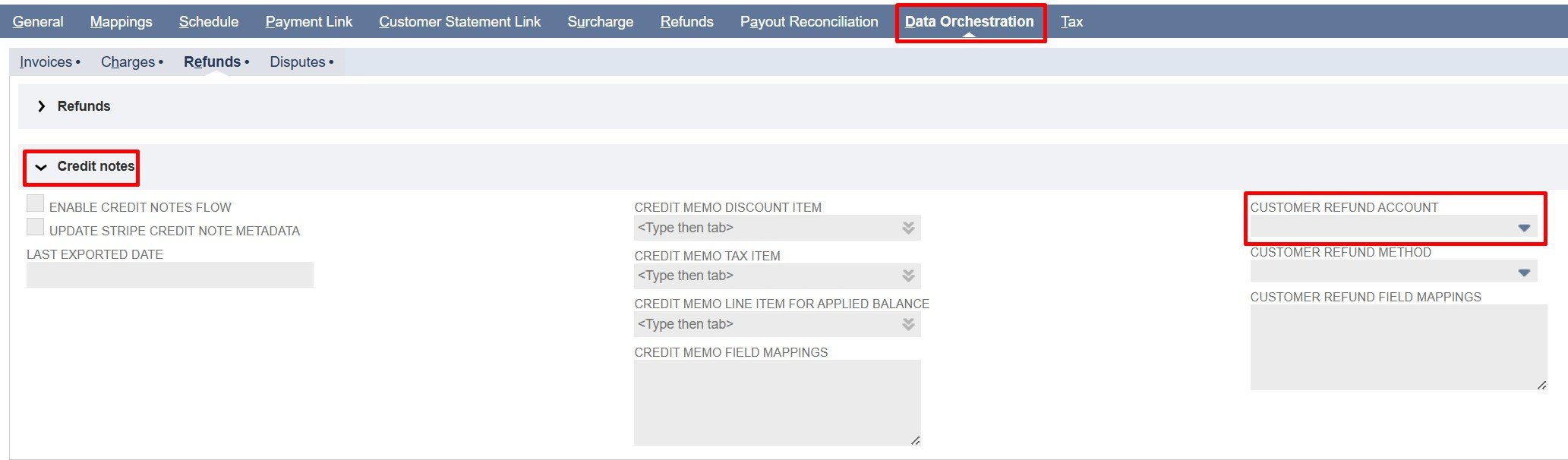
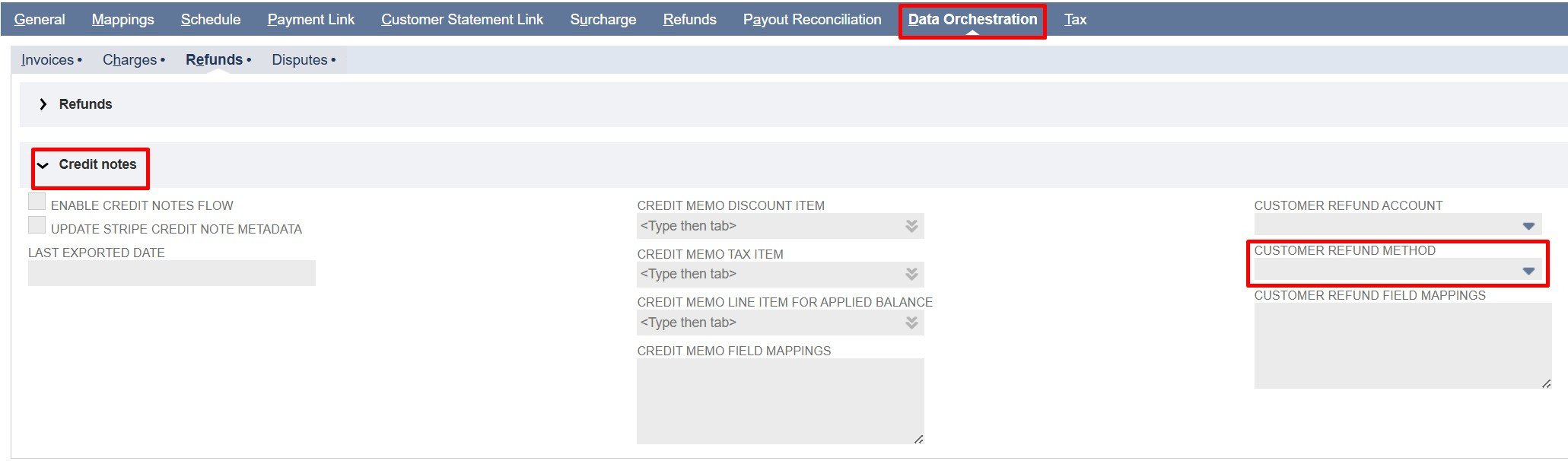
All credit notes settings can be found under the Refunds subtab in the Data Orchestration tab. The fields are grouped together under Credit Notes for easy access.

Note: Click any field label to see a description of its purpose and usage.

Field Descriptions

  • Enable Credit Notes Flow: Check/mark to enable importing Stripe credit notes into NetSuite. Uncheck to stop all credit note imports.

  • Update Stripe Credit Note Metadata: Check/mark to automatically write the NetSuite Credit Memo Internal ID back to the corresponding Stripe Credit Note after it is created

  • Last Exported Date: Shows the last time credit notes were imported from Stripe (in Unix timestamp). This value is used in the next import to fetch only credit notes created after this time using the created[gte] parameter.

Note: This field is updated by the system after every flow execution and is read-only.

  • Credit Memo Discount Item: Maps the NetSuite Item that represents any discounts from Stripe Credit Notes.

Note: Use only non-inventory items. All Stripe discounts appear as a single line on the NetSuite Credit Memo.

  • Credit Memo Tax Item: Maps the NetSuite item that captures taxes from Stripe credit notes.

Note: Use only non-inventory items. All Stripe taxes are combined into a single line on the NetSuite credit memo.


Item Mapping Hierarchy:

  1. Configured Items (Discount, Tax): 

    • If the “Credit Memo Discount Item” and/or “Credit Memo Tax Item” are configured, they are imported as single-line items on the credit note as described above.

  1. Multiple Line Items:

    • “Credit Memo Field Mappings” lets you link each Stripe Credit Note line to a NetSuite item.

    • You can use either static or dynamic lookups to select NetSuite Items for each Stripe Credit Note line.

    • Sublist mappings are required even when default items are set  (using Discount Item, or Tax Item field). Sublist mappings allow mapping beyond Item, Quantity, and Amount, ensuring all credit note lines, discounts, and taxes from Stripe are imported correctly into NetSuite

Note: 
1. Always map Item, Quantity, and Amount for tax and discount lines, plus other required fields. Quantity defaults to 1, and Amount comes from Stripe (total discounts or taxes).

2. Use the record mapping fields to map all required line-level fields.

3. For conditional mapping, always leave the default item fields blank and use static or dynamic mapping. Any values entered in these fields will override the conditional logic in the Credit Memo Field Mappings.

Refer to the Field Mapping Documentation for examples and detailed instructions on implementing conditional mappings.

  • Credit memo Line Item for Applied Balance: Maps the NetSuite item that represents any Applied Balance from Stripe credit notes.

Note: Use only non-inventory items. The Applied Balance will appear as a line item on the NetSuite credit memo.

  • Credit Memo Field Mappings: Controls how Stripe Credit Note fields are mapped to NetSuite Credit Memo fields

 Note: Only fields from the Stripe Credit Note object can be used.
Refer to the Sample Credit Memo Mappings for detailed mapping configurations. Also, for detailed JSON mapping examples and instructions, refer to the Field Mapping Documentation.

  • Customer Refund Account: Select the NetSuite account where Stripe refunds will be recorded. All imported customer refunds are posted to this account.

Note: To use condition-based mapping, leave the Customer Refund Account field empty and use static or dynamic mapping. Filling in this field sets a global default that overrides any conditional logic in the Customer Refund Field Mappings.

  • Customer Refund Method: Select the payment method in NetSuite for recording Stripe refunds.

Note: To use condition-based mapping, leave the Customer Refund Method field empty and use static or dynamic mapping. Filling in this field sets a global default that overrides any conditional logic in the Customer Refund Field Mappings.

  • Customer Refund Field Mappings: Controls how Stripe refund fields are mapped to NetSuite customer refund fields

Note: Fields from the Stripe credit note object can be used. Refund data is organized as an array within each refund object, with associated credit notes available via parent objects (for example, parent.stripeCreditnoteData.id, parent.stripeCustomerData.id).
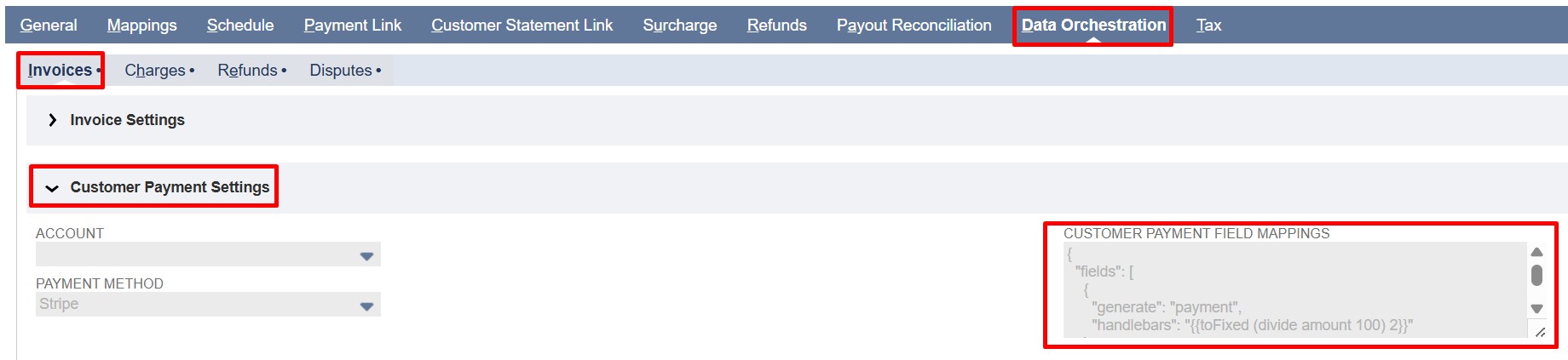
The NetSuite credit memo record Id can be accessed in mappings as  parent.stripeCreditnotesData.nsCreditmemoId
Refer to the Sample Credit Refund Mappings for detailed mapping configurations.

For detailed JSON mapping examples and instructions, refer to the Field Mapping Documentation.


Implementation Details:

The following steps are shared across Batch, and On-Demand explains how Stripe data is imported into NetSuite.

  1. Get Credit notes:

  • Fetches Credit Notes using the Stripe API (for Batch and On-Demand).

  • Skips Credit Notes already present in NetSuite using the Stripe Credit Note ID (PayPack) field on the credit memo record.

  • Conditions:

    • Uses the Last Exported Date field for incremental sync. (initially set on the Batch script)

    • Uses the Stripe Credit Note IDs field to import specific credit notes (On-Demand) 

  1. Identify Related Invoice:

  • The related NetSuite Invoice record is fetched by performing a lookup (search) using the Invoice ID from the Credit Note data to Stripe Invoice Id (PayPack) ‘custbody_pp_stripe_invoice_id’ field on the NetSuite Invoice record .

  • Conditions:

    • If no NetSuite Invoice is found, the Credit Note is ignored.

  1. Get Related Invoice Line Items: 

  • Stripe Credit Notes do not include product or item details by default. To ensure accurate item mapping, the system retrieves the line items from the corresponding Stripe Invoice.

  • These invoice items are then compared with the items listed in the Credit Note. The system uses the items that match with the Credit Note details.

  1. Get credit note customer balance data:  

  • If a credit note includes a customer balance ID, the system automatically retrieves the related customer balance information. This is done through a Customer Balance API call, ensuring that the credit note reflects the correct balance details.

  • If the credit note does not contain a customer balance ID, this step is skipped..

  1. Get Refund data:  

  • If a credit note includes refunds, the system retrieves the corresponding refund information by making a Refunds API call to Stripe.

  • When multiple refund IDs are present, each refund is fetched individually.

  • If the credit note does not contain any refund IDs, this step is skipped.

  1. Create credit memo Record:  

  • Transforms the NetSuite Invoice into a Credit Memo and applies all configured field mappings.

  • Populates line items, discounts, and taxes according to mappings.

  • Stores the Stripe Credit Note ID in the Stripe Credit Note ID (PayPack) field of the NetSuite Credit Memo record if mapped.

  • Note: Refer to the Sample Credit Memo Mappings for detailed mapping configurations. Also, for detailed JSON mapping examples and instructions, refer to the Field Mapping Documentation.

  • Conditions:

    • Applied balance is added as a separate line item with a negative amount on the credit memo with item configured in the configuration.

    • Item-level mappings Any required or custom line-level field mappings need to be mapped, then those fields must be populated through the item-level mappings in the credit memo mapping fields. If the required values are not mapped.


  1. Create Customer Refund Record:  

  • Creates a NetSuite Customer Refund after the Credit Memo is generated, If a credit note contains refunds 

  • A credit memo is applied to the corresponding Customer Refund through the sublist mappings, which define how the credit memo is linked and applied during import.

  • Both the Stripe refund object and the associated credit note object data are available for mapping. Access credit note data using the stripeCreditnotesData reference (e.g., parent.stripeCreditnotesData.id).

  • Note: Refer to the Sample Customer Refund Mappings for detailed sublist mapping configurations on how to correctly apply a credit memo to a customer refund. Also, for detailed JSON mapping examples and instructions, refer to the Field Mapping Documentation.

  • Populates fields such as customer, amount, and Stripe Refund ID (PayPack) based on field mappings.

  1. Update Stripe Metadata:  

  • Updates the Stripe Credit note Metadata with the created NetSuite Credit memo/ Customer Refund Record ID.

  • Conditions: 

    • Skip if the Update Stripe Refund Metadata checkbox is disabled in the configuration.

  1. PayPack Logging Structure:
    The custom records (PayPack Flow Status Log and PayPack Flow Record Log) together provide full traceability, help identify failed or skipped records, and support auditing for all Data Orchestration flows.

  • PayPack Flow Status Log: This custom record logs the overall progress of a flow, including start/end times, total records processed, errors or ignored records, and final status. It gives a clear summary for monitoring and auditing purposes.

  • PayPack Flow Record Log: This record tracks individual Stripe records processed in a flow, including the Stripe ID, related NetSuite transaction or customer, Stripe API responses, errors, and optional notes. Each log is linked to the Flow Status Log for context.

Script-Specific Details:

  • Batch / MapReduce Script:

    • Processes credit notes in batches based on creation date greater than or equal to the last exported date or start date.

    • On the first run, when there is no Last Exported Date recorded, the script uses the credit note Start Date parameter on the deployment record as the starting point for fetching credit notes.

    • For all subsequent runs, the script uses the Last Exported Date (the date of the most recent successful export) to identify and process only new credit notes created after that date.

    • This ensures that credit notes are fetched incrementally without duplication across runs.

    • The script runs on a scheduled basis, automatically executing at defined intervals to keep Stripe and NetSuite synchronized.

    • Parameters:

      • Stripe Account Id (custscript_pp_cn_stripe_acc_id) – This parameter tells the script which Stripe account to use during a run and matches the internal ID of the PayPack Stripe Account Configuration custom record in NetSuite.

      • Credit note Start Date (custscript_pp_cn_start_date) – Indicates the earliest date for fetching credit notes, used only on the first execution or if no previous Last Exported Date (found in the Configuration) exists. This value must be entered manually as a timestamp (for example, 1761147332) representing seconds since the Unix epoch. (Upon completion of a flow, the Last Exported Date is automatically updated.)

  • On-Demand MapReduce Script:

    • Credit notes are processed based on the specified Stripe Credit note IDs.

    • Primarily used to import missing credit notes.

    • Runs only when triggered by the user.

    • Parameters:

      • Stripe Account Id (custscript_pp_od_cn_stripe_acc_id) –  This parameter tells the script which Stripe account to use during a run and matches the internal ID of the PayPack Stripe Account Configuration custom record in NetSuite.

      • Stripe Credit note IDs (custscript_pp_od_stripe_cn_ids) – This field accepts a comma-separated list of specific Credit notes, with multiple Stripe Credit notes at a time.

Sample Field Mappings:

  1. Sample Credit Memo Field Mappings:
1{
2    "fields": [
3        {
4            "generate": "location",
5            "hardCodedValue": "2"
6        },
7        {
8            "generate": "custbody_pp_s2ns_credit_note_id",
9            "extract": "id"
10        }
11    ],
12    "sublist": {
13        "item": [
14            {
15                "generate": "item",
16                "dynamicLookup": {
17                    "recordType": "inventoryitem",
18                    "filters": [
19                        [
20                            "stockdescription",
21                            "is",
22                            "{{lines.data[].product}}"
23                        ],
24                        "and",
25                        [
26                            "isinactive",
27                            "is",
28                            "F"
29                        ]
30                    ],
31                    "resultField": "internalid",
32                    "default": "502"
33                }
34            },
35            {
36                "generate": "quantity",
37                "extract": "lines.data[].quantity"
38            },
39            {
40                "generate": "price",
41                "hardCodedValue": "-1"
42            },
43            {
44                "generate": "amount",
45                "handlebars": "{{toFixed (divide lines.data[].amount 100) 2}}"
46            },
47            {
48                "generate": "taxcode",
49                "hardCodedValue": "-7"
50            }
51        ],
52        "discount": [
53            {
54                "generate": "item",
55                "hardCodedValue": 603
56            },
57            {
58                "generate": "quantity",
59                "hardCodedValue": 1
60            },
61            {
62                "generate": "price",
63                "hardCodedValue": "-1"
64            },
65            {
66                "generate": "amount",
67                "hardCodedValue": 1
68            },
69            {
70                "generate": "taxcode",
71                "hardCodedValue": "-7"
72            }
73        ],
74        "tax": [
75            {
76                "generate": "item",
77                "hardCodedValue": 716
78            },
79            {
80                "generate": "quantity",
81                "hardCodedValue": 1
82            },
83            {
84                "generate": "price",
85                "hardCodedValue": "-1"
86            },
87            {
88                "generate": "amount",
89                "hardCodedValue": 1
90            },
91            {
92                "generate": "ignoreInclusiveTax",
93                "hardCodedValue": "true"
94            }
95        ]
96    }
97}
  1. Sample Customer Refund Field Mappings:
1{
2    "fields": [
3        {
4            "generate": "customer",
5            "dynamicLookup": {
6                "recordType": "customer",
7                "filters": [
8                    [
9                        "custentity_nm_stripecharge_customer_id",
10                        "is",
11                        "{{parent.stripeCreditnotesData.customer}}"
12                    ]
13                ],
14                "resultField": "internalid",
15                "default": ""
16            }
17        },
18        {
19            "generate": "custbody_nm_pp_stripe_refund_id",
20            "extract": "id"
21        },
22        {
23            "generate": "paymentmethod",
24            "hardCodedValue": "10"
25        },
26        {
27            "generate": "account",
28            "hardCodedValue": "2"
29        }
30    ],
31    "sublist": {
32        "apply": [
33            {
34                "generate": "apply",
35                "hardCodedValue": "T"
36            },
37            {
38                "generate": "doc",
39                "extract": "parent.stripeCreditnotesData.nsCreditmemoId"
40            },
41            {
42                "generate": "amount",
43                "handlebars": "{{toFixed (divide amount 100) 2}}"
44            }
45        ]
46    }
47}
48
49

PayPack – Stripe to NetSuite Disputes & Dispute Reversal Import

Overview

This integration syncs Stripe disputes and dispute reversals into NetSuite via PayPack, with related Dispute, Refund, and Payment details.

Stripe Disputes & Dispute Reversals can be imported using a single method:

  • Batch Import – Scheduled sync of multiple disputes.

The batch import uses the PayPack configuration, ensuring consistent, accurate, and transparent dispute processing in NetSuite.


Key Features:

Automated Dispute Synchronization

  • Automatically creates NetSuite records—Cash Refund / Credit Memo and Customer Refund for Disputes, and Customer Payment / Cash Sale for Dispute Reversals—from Stripe data.

  • Ensures accurate data and eliminates the need for manual reconciliation.

Flexible Execution Mode

  • Supports Batch (Scheduled) flow.

  • The batch import utilizes the PayPack configuration and mapping, ensuring consistent field mapping.

Centralized Configuration & Mappings

  • Managed through mappings on the PayPack Flow Configuration

  • Instructions for adding or updating field mappings are available in the Field Mapping Documentation. The Sample Field Mappings section at the end of this document provides additional guidance.

Comprehensive Logging & Error Tracking

  • Keeps detailed logs in PayPack Flow Record Logs and PayPack Flow Status Logs.

  • Helps quickly identify and resolve issues during or after synchronization.

Configuration Settings:

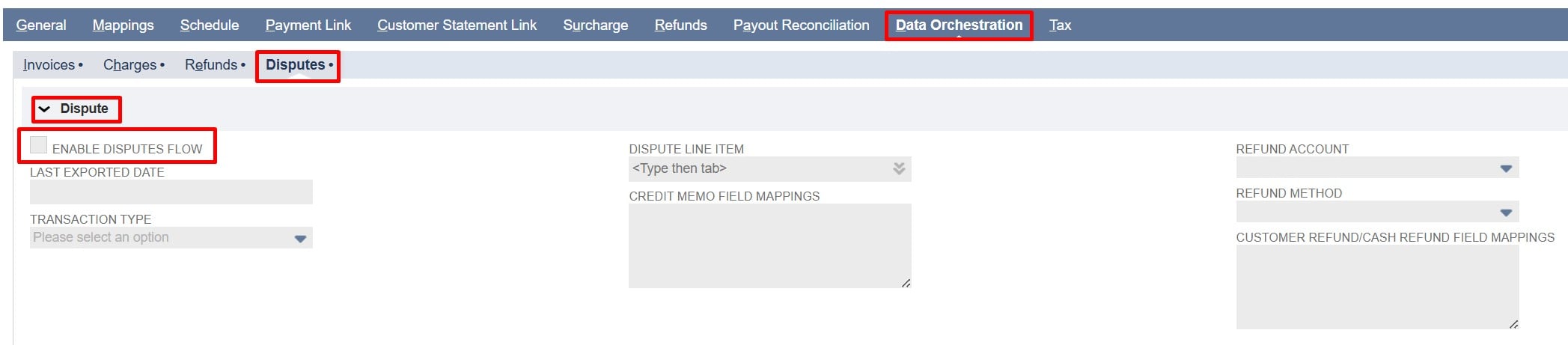
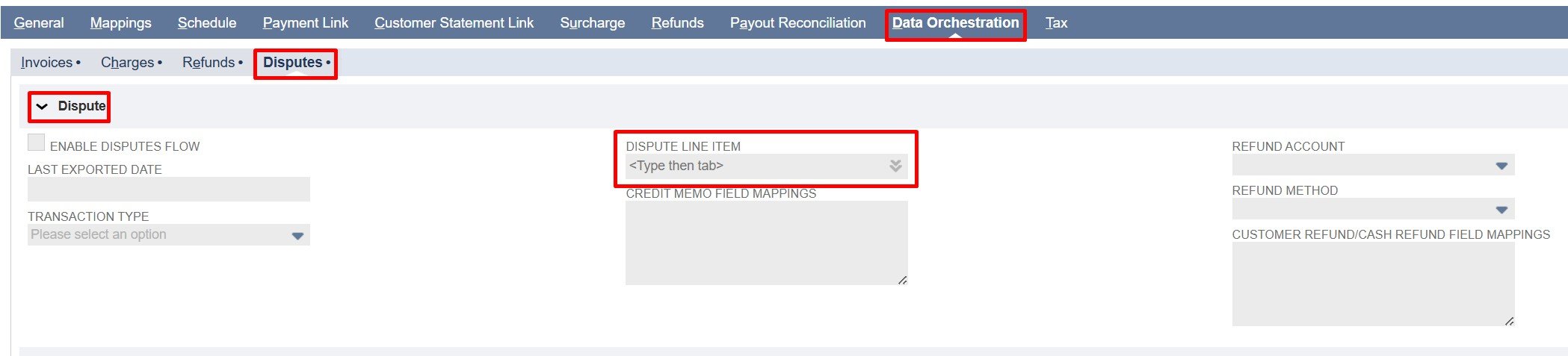
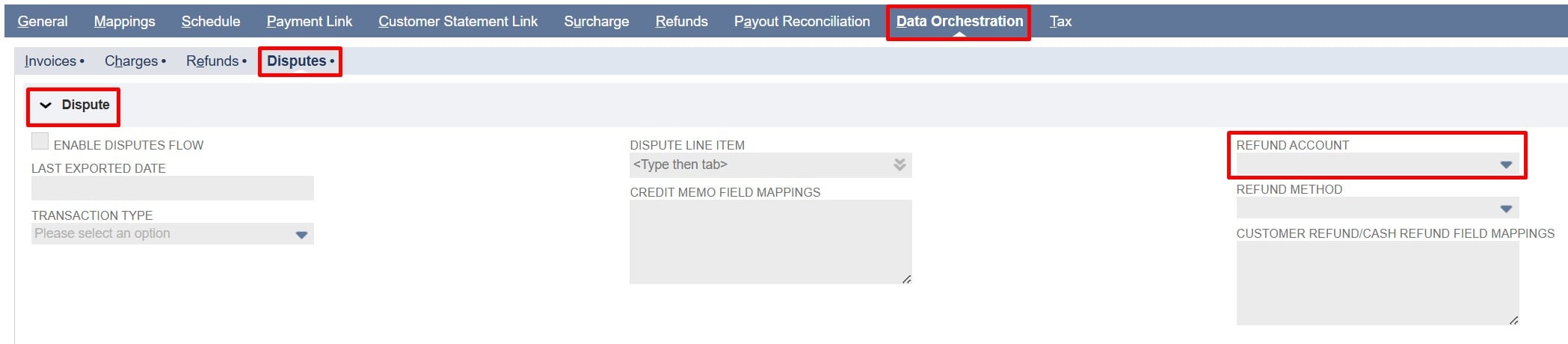
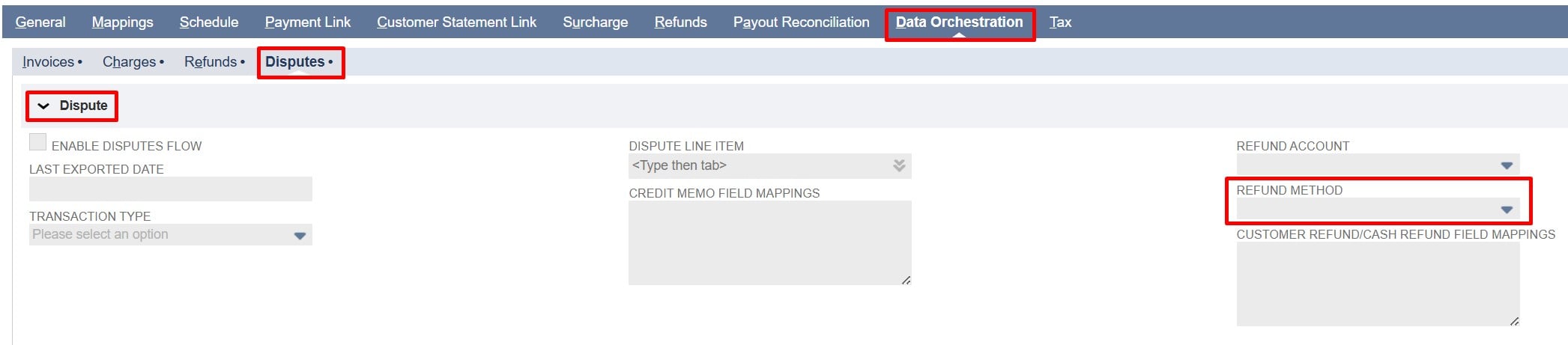
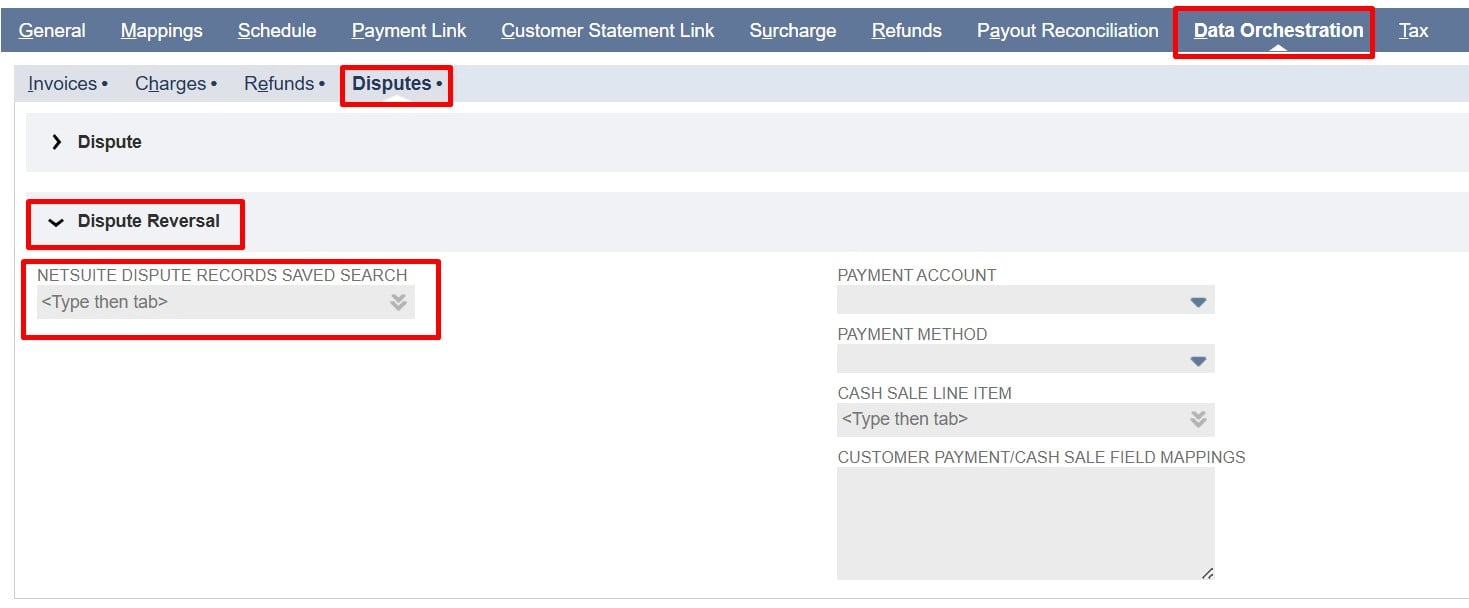
All dispute settings are located under the Disputes subtab within the Data Orchestration tab. Under this subtab, the Dispute and Dispute Reversal field groups contain all configuration fields required for managing the Disputes flow.


Note: Click any field label in the Dispute and Dispute Reversal field groups to see a description of its purpose and usage.

Field Descriptions

  • Enable Disputes Flow: Check/mark to enable importing Stripe disputes into NetSuite. Uncheck to stop all dispute imports.

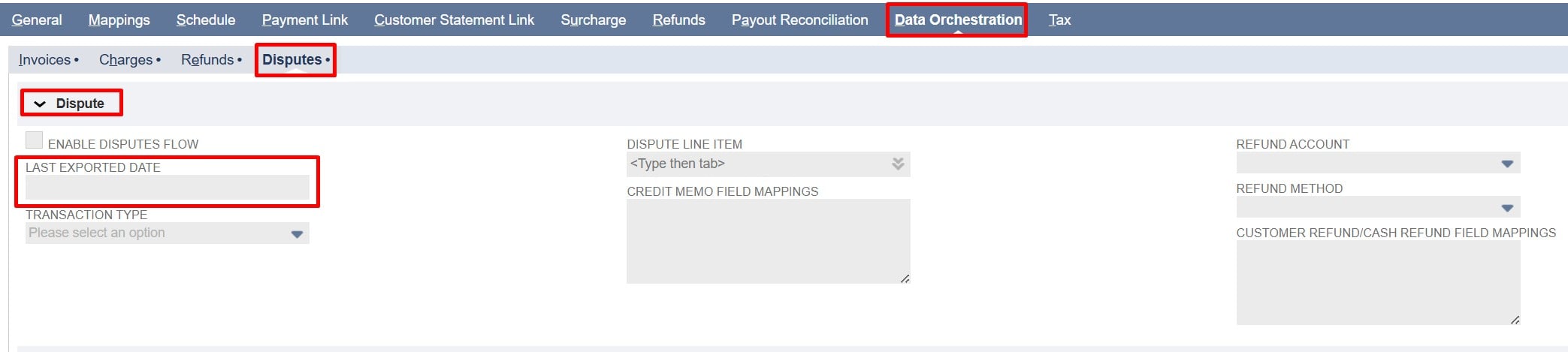
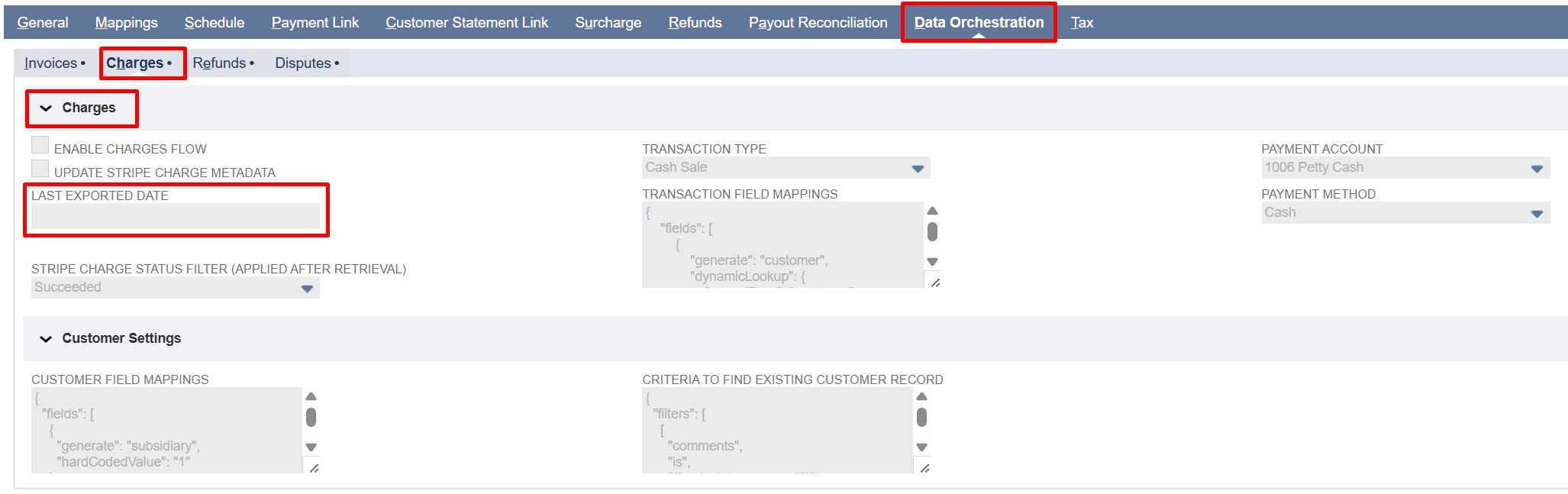
  • Last Exported Date: Shows the last time disputes were imported from Stripe (in Unix timestamp). This value is used in the next import to fetch only disputes created after this time using the created[gte] parameter.
    Note: The system updates this field after every flow execution, and it is read-only.
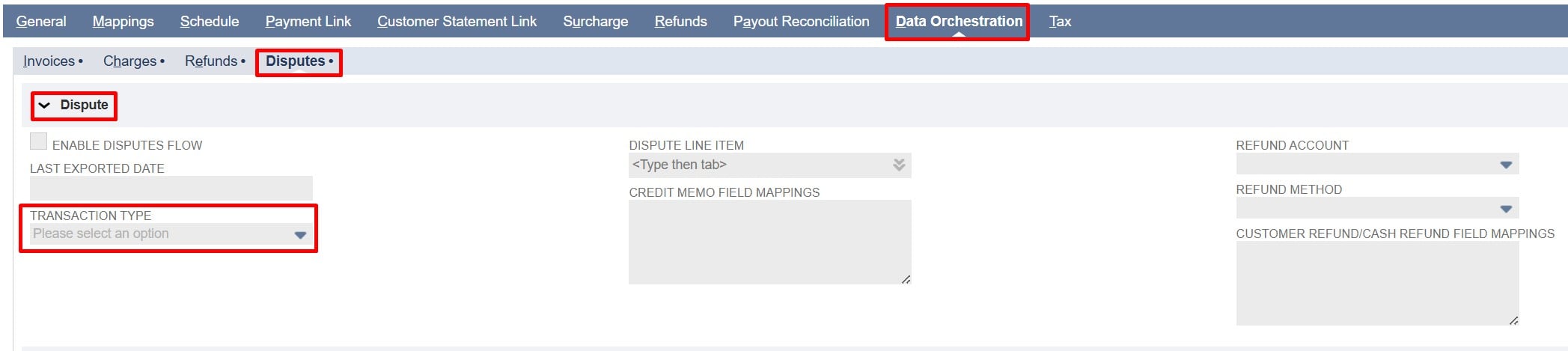
  • Transaction Type: Determines which NetSuite transaction type is created for each imported Stripe dispute. Choose between Cash Sale / Cash Refund, or Customer Payment / Customer Refund, based on your accounting workflow.

    Note: When Cash Sale / Cash Refund is selected, Cash Refund is created for Disputes and Cash Sale is created for Dispute Reversals. When Customer Payment / Customer Refund is selected, Credit Memo + Customer Refund is created for Disputes, and Customer Payment is created for Dispute Reversals.

  • Dispute Line Item: A NetSuite item used in Credit Memo to map the total Stripe dispute amount.

    Note: Use only non-inventory items. To use condition-based mapping, leave the Dispute Line Item field empty and use static or dynamic mapping. Filling in these fields sets a global default that overrides any conditional logic in item mappings of the Credit Memo Field Mappings.

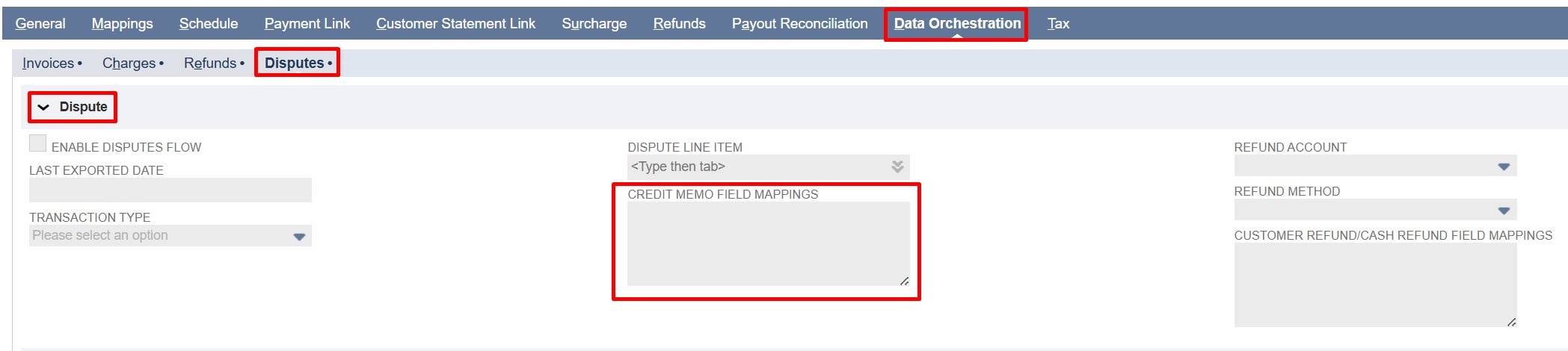
  • Credit Memo Field Mappings: Controls how Stripe Dispute fields are mapped to NetSuite Credit Memo fields.
    Note: Fields from the Stripe dispute object can be used.
    Refer to the Sample Credit Memo Field Mappings at the end of this document for reference. Also, for detailed JSON mapping examples and instructions, refer to the Field Mapping Documentation.

  • Refund Account: Select the NetSuite account where Customer Refund / Cash Refund will be recorded. All imported Stripe disputes are posted to this account.

    Note: To use condition-based mapping, leave the Refund Account field empty and use static or dynamic mapping. Filling in this field sets a global default that overrides any conditional logic in the Customer Refund / Cash Refund Field Mappings.
    Refer to the Field Mapping Documentation for examples and detailed instructions on implementing conditional mappings.
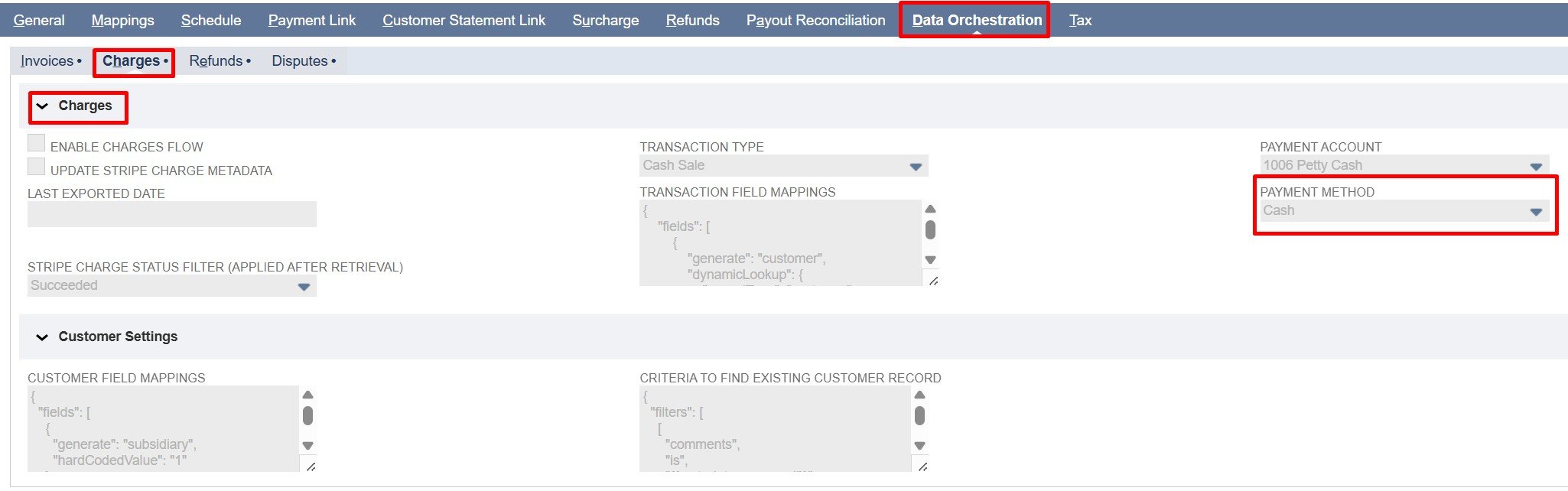
  • Refund Method: Select the payment method to be used for recording the Stripe dispute on the Customer Refund / Cash Refund record.

    Note: To use condition-based mapping, leave the Refund Method field empty and use static or dynamic mapping. Filling in this field sets a global default that overrides any conditional logic in the Customer Refund / Cash Refund Field Mappings.
    Refer to the Field Mapping Documentation for examples and detailed instructions on implementing conditional mappings.
     

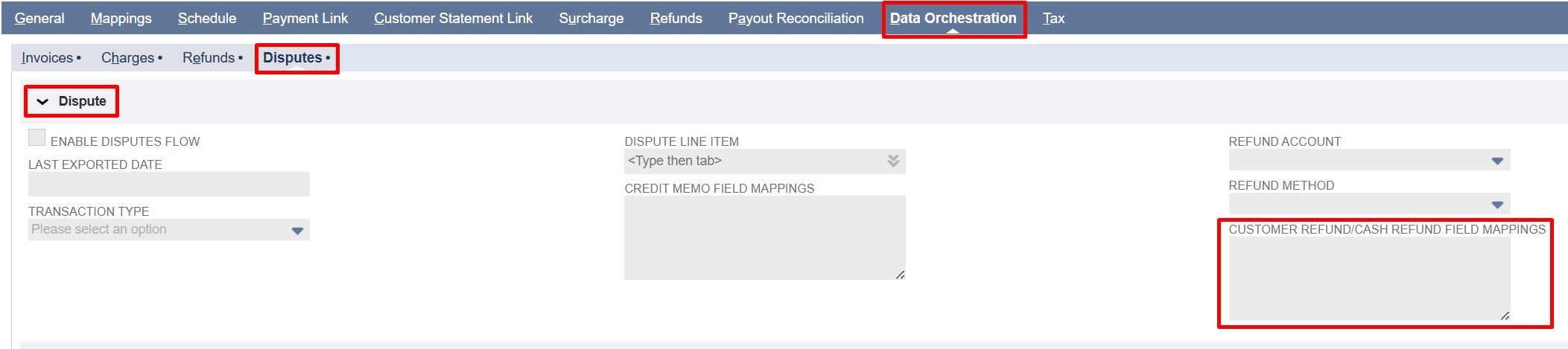
  • Customer Refund / Cash Refund Field Mappings: Controls how Stripe Dispute fields are mapped to NetSuite Customer Refund / Cash Refund fields.
    Note: Fields from the Stripe dispute object can be used.
    Refer to the Sample Customer Refund Field Mappings or Sample Cash Refund Field Mappings at the end of this document for reference. Also, for detailed JSON mapping examples and instructions, refer to the Field Mapping Documentation.
  • NetSuite Dispute Records Saved Search: A saved search in NetSuite used to fetch dispute records with a status other than “won or lost”. The search retrieves disputes corresponding to Stripe disputes to facilitate status updates. 

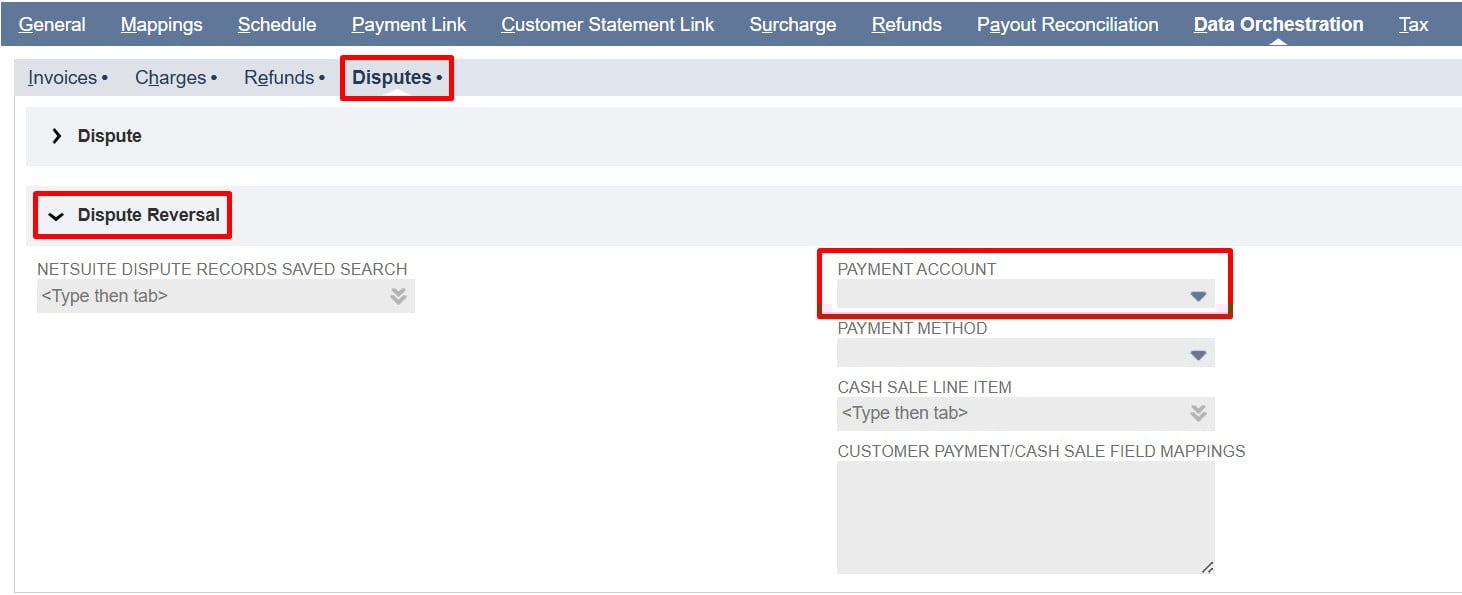
  • Payment Account: Select the NetSuite Account where Stripe dispute payments will be recorded on the Customer Payment / Cash Sale record.

    Note: To use condition-based mapping, leave the Payment Account field empty and use static or dynamic mapping. Filling in this field sets a global default that overrides any conditional logic in the Customer Payment Field Mappings.
    Refer to the Field Mapping Documentation for examples and detailed instructions on implementing conditional mappings.

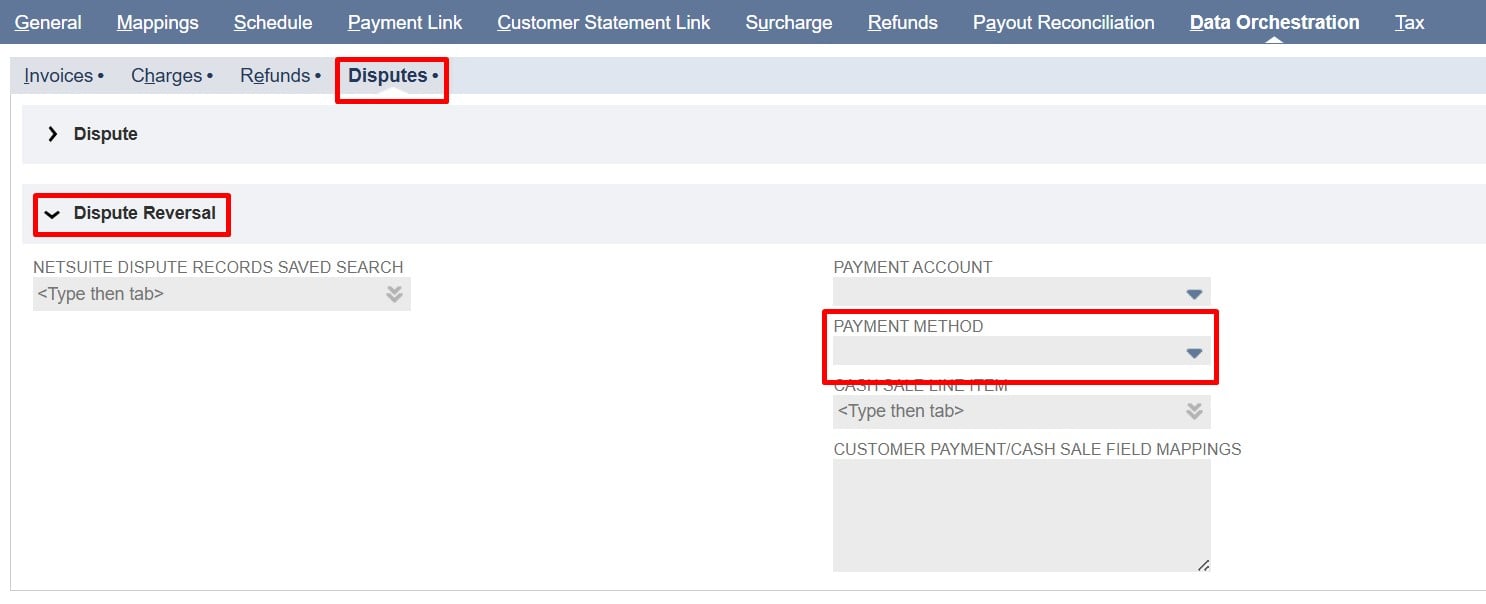
  • Payment Method: Select the payment method in NetSuite for recording Stripe dispute payments on the Customer Payment / Cash Sale record.

    Note: To use condition-based mapping, leave the Payment Method field empty and use static or dynamic mapping. Filling in this field sets a global default that overrides any conditional logic in the Customer Payment Field Mappings.
    Refer to the Field Mapping Documentation for examples and detailed instructions on implementing conditional mappings.

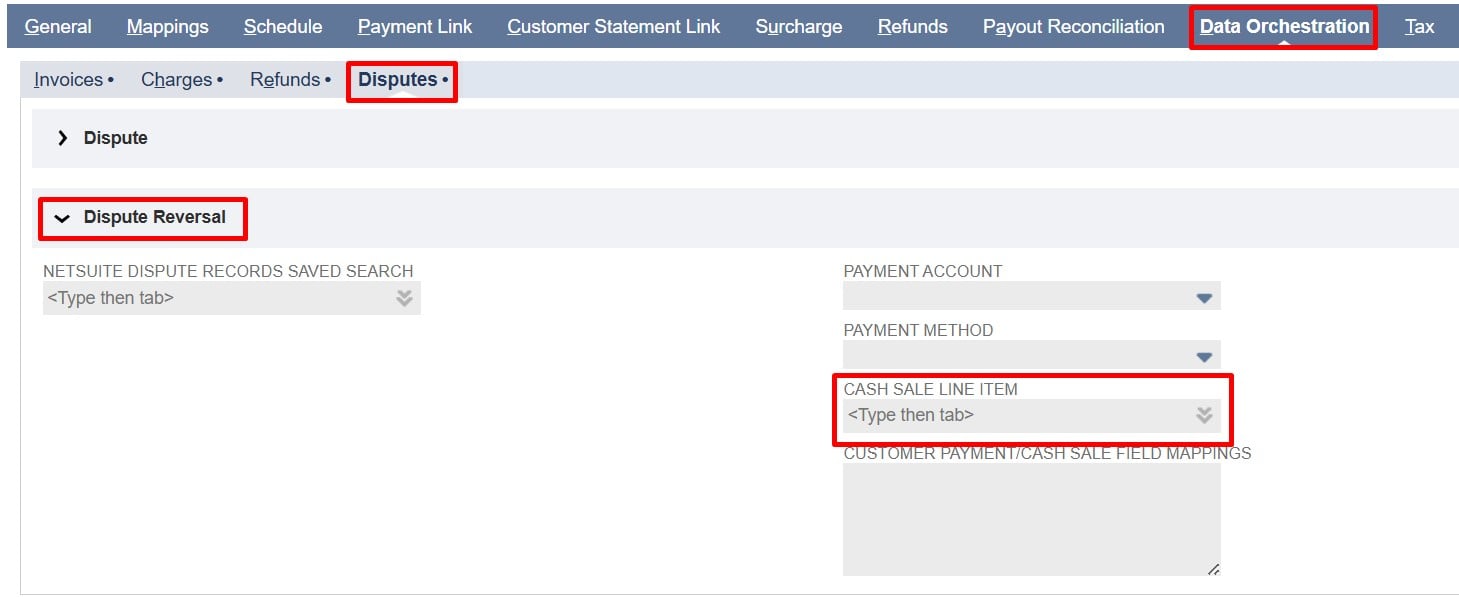
  • Cash Sale Line Item: A NetSuite item used in Cash Sale to map the total Stripe dispute amount.
    Note: Use only non-inventory items. To use condition-based mapping, leave the Cash Sale Line Item field empty and use static or dynamic mapping. Filling in these fields sets a global default that overrides any conditional logic in item mappings of the Cash Sale Field Mappings.

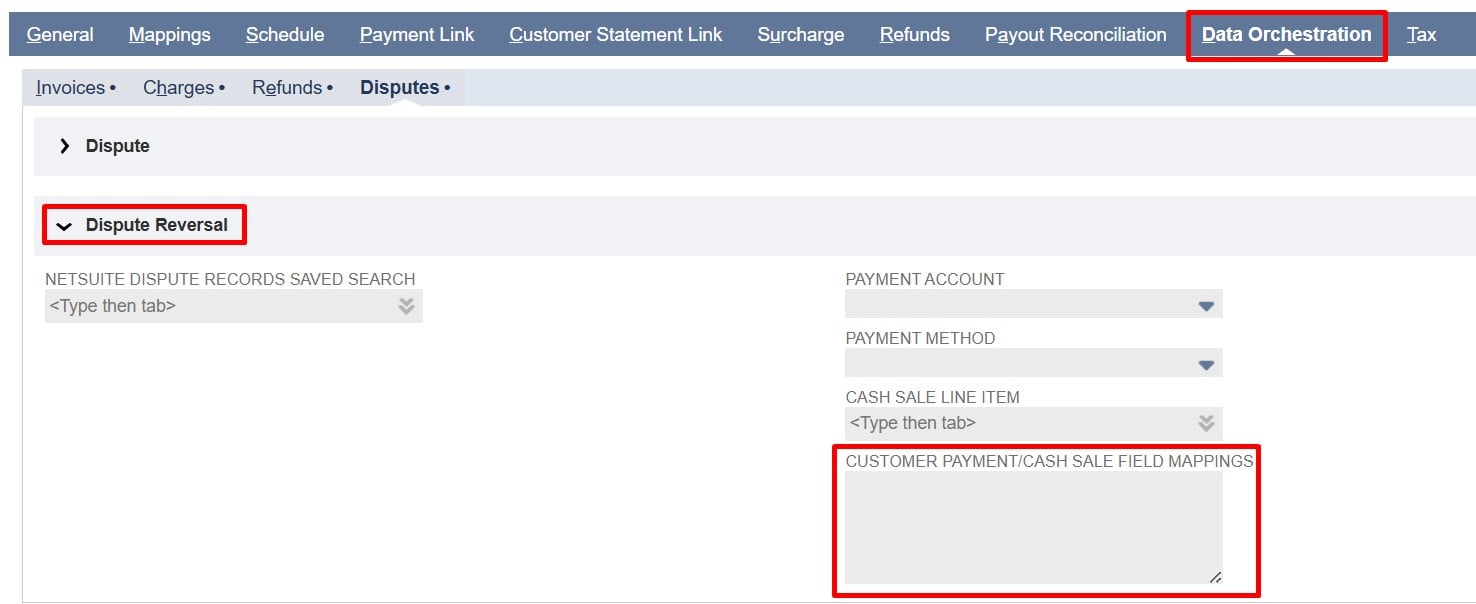
  • Customer Payment / Cash Sale Field Mappings: Controls how Stripe Dispute fields are mapped to NetSuite Customer Payment / Cash Sale fields.
    Note: Fields from the Stripe dispute object
    can be used as the start point of the data is NetSuite the dispute data is mapped as (stripeDisputeData.id) if data from saved search is needed to map then you saved search label (dispute_customer_id).
    Refer to the Sample Customer Payment Field Mappings or Sample Cash Sale Field Mappings at the end of this document for reference. Also, for detailed JSON mapping examples and instructions, refer to the Field Mapping Documentation.
Implementation Details:

Dispute Implementation Details 

  1. Get Disputes:

  • Fetches disputes along with the charge object from the Stripe API.

  • Skips disputes already present in NetSuite using the Dispute ID field on the Custom PayPack Stripe Dispute Record.

  • Conditions:

    • Use the Last Exported Date field for incremental sync. (initially set on the Batch script)

  1. Get the Transaction type from PayPack Configuration:

  • Retrieve the NetSuite transaction type defined in the PayPack configuration. This value determines which NetSuite record type(Cash Refund or Credit Memo, and Customer Refund) the Stripe dispute will be mapped to.

  • Conditions:

    • A transaction type must be configured. If the transaction type is missing, the dispute cannot be processed.

  1. Create the custom record (PayPack Stripe Disputes) in NetSuite:

  • Creates a custom PayPack Stripe Dispute Record in NetSuite to store the Stripe Dispute details.

  • Populates fields such as the Stripe Dispute ID, Stripe Charge ID, dispute amount, and Stripe Customer ID.

  1. Create the Selected Transaction Record in NetSuite:

  • Creates the selected NetSuite transaction record (Cash Refund / Credit Memo and Customer Refund) with the mapped fields from the configuration.

  • Populates body fields, line items, refund method, and refund account according to configured mappings.

  • Stores the Stripe Dispute ID in the Stripe Dispute Id (PayPack) field of the NetSuite Cash Refund, or  Credit Memo, and Customer Refund records if mapped.

  • Conditions:

    • Before the creation of the selected record, the process checks whether a record already exists for the same Stripe Dispute ID in the Stripe Dispute Id (PayPack) field.

    • Log each record creation or skipped records in the PayPack Flow Record Log.

Note: Refer to the Sample Field Mappings of Cash Refund, Credit Memo, and Customer Refund. Also, for detailed JSON mapping examples and instructions, refer to the Field Mapping Documentation.
Dispute Reversal Implementation Details 

  1. Get Custom Dispute Records from NetSuite for Reversal: 

  • Loads dispute records from NetSuite using the configured saved search.

  • The saved search fetches the custom dispute record with a status other than “won/lost”.

  1. Get Stripe Dispute Details:

  • For each dispute from the saved search, get the latest dispute data from Stripe using the dispute ID.

  1. Get the Transaction type from PayPack Configuration:

  • Retrieve the NetSuite transaction type defined in the PayPack configuration. This value determines which NetSuite record type(Cash Sale or Customer Payment) the Stripe dispute will be mapped to.

  • Conditions:

    • A transaction type must be configured. If the transaction type is missing, the dispute cannot be processed and shows an error to select the transaction type.

  1. Create the Selected Transaction Record in NetSuite:

  • Creates the selected NetSuite transaction record (Cash Sale / Customer Payment) with the mapped fields from the configuration.

  • Populates body fields, line items, payment method, and payment account according to configured mappings.

  • Stores the Stripe Dispute ID in the Stripe Dispute Id (PayPack) field of the NetSuite Cash Sale or Customer Payment records if mapped.

  • Conditions:

    • A NetSuite transaction is created only when the Stripe dispute status is “won.” Disputes with any other status are updated in the NetSuite dispute custom record, but do not generate a new transaction.

    • Before the creation of the selected record, the process checks whether a record already exists for the same Stripe Dispute ID in the Stripe Dispute Id (PayPack) field.

    • Log each record creation or skipped records in the PayPack Flow Record Log.

Note: Refer to the Sample Field Mappings of Cash Sale and Customer Payment. Also, for detailed JSON mapping examples and instructions, refer to the Field Mapping Documentation.
  1. Update the Corresponding NetSuite Dispute Record:

  • The dispute record in NetSuite is updated with the latest dispute status received from Stripe.

PayPack Logging Structure:


The custom records (PayPack Flow Status Log and PayPack Flow Record Log) together provide full traceability, help identify failed or skipped records, and support auditing for all Data Orchestration flows.

  • PayPack Flow Status Log: This custom record logs the overall progress of a flow, including start/end times, total records processed, errors or ignored records, and final status. It gives a clear summary for monitoring and auditing purposes.

  • PayPack Flow Record Log: This record tracks individual Stripe records processed in a flow, including the Stripe ID, related NetSuite transaction or customer, Stripe API responses, errors, and optional notes. Each log is linked to the Flow Status Log for context.

Script-Specific Details:

  • Batch / MapReduce Script for Dispute:

    • Processes disputes in batches based on creation date greater than or equal to the last exported date or start date.

    • On the first run, when there is no Last Exported Date recorded, the script uses the Dispute Start Date parameter on the deployment record as the starting point for fetching disputes.

    • For all subsequent runs, the script uses the Last Exported Date (the date of the most recent successful export) to identify and process only new disputes created after that date.

    • This ensures that disputes are fetched incrementally without duplication across runs.

    • The script runs on a scheduled basis, automatically executing at defined intervals to keep Stripe and NetSuite synchronized.

    • Parameters:

      • Stripe Account Id (custscript_pp_stripe_dis_account_id) – This parameter tells the script which Stripe account to use during a run and matches the internal ID of the PayPack Stripe Account Configuration custom record in NetSuite.

      • Dispute Start Date (custscript_pp_dispute_start_date) – Indicates the earliest date for fetching disputes, used only on the first execution or if no previous Last Exported Date (found in the Configuration) exists. This value must be entered manually as a timestamp (for example, 1761147332) representing seconds since the Unix epoch. (Upon completion of a flow, the Last Exported Date is automatically updated.)

  • Batch / MapReduce Script for Dispute Reversal:

    • Processes dispute reversals in batches based on Stripe dispute updates.

    • Fetches only disputes that require reversal using a saved search in the specified Stripe account.

    • Runs on a scheduled basis to keep Stripe and NetSuite synchronized for dispute reversals.

    • Parameters: 

      • PayPack Stripe Account (custscript_pp_stripe_disputerever_acc_id) – This parameter tells the script which Stripe account to use during a run and matches the internal ID of the PayPack Stripe Account Configuration custom record in NetSuite.

Sample Field Mappings:

  1. Sample Cash Refund Field Mappings:
1{
2  "fields": [
3    {
4      "generate": "entity",
5      "dynamicLookup": {
6        "recordType": "customer",
7        "filters": [
8          [
9            "custentity_nm_stripecharge_customer_id",
10            "is",
11            "{{charge.customer}}"
12          ]
13        ],
14        "resultField": "internalid",
15        "default": ""
16      }
17    },
18    {
19      "generate": "location",
20      "hardCodedValue": "2"
21    },
22    {
23      "generate": "custbody_pp_stripe_dispute_id",
24      "extract": "id"
25    }
26  ],
27  "sublist": {
28    "item": [
29      {
30        "generate": "item",
31        "hardCodedValue": "387"
32      },
33      {
34        "generate": "quantity",
35        "hardCodedValue": "1"
36      },
37      {
38        "generate": "price",
39        "hardCodedValue": "-1"
40      },
41      {
42        "generate": "amount",
43        "handlebars": "{{toFixed (divide amount 100) 2}}"
44      },
45      {
46        "generate": "taxcode",
47        "hardCodedValue": "-7"
48      }
49    ]
50  }
51}
  1. Sample Credit Memo Field Mappings:
1{
2  "fields": [
3    {
4      "generate": "entity",
5      "dynamicLookup": {
6        "recordType": "customer",
7        "filters": [
8          [
9            "custentity_nm_stripecharge_customer_id",
10            "is",
11            "{{charge.customer}}"
12          ]
13        ],
14        "resultField": "internalid",
15        "default": ""
16      }
17    },
18    {
19      "generate": "location",
20      "hardCodedValue": "2"
21    },
22    {
23      "generate": "custbody_pp_stripe_dispute_id",
24      "extract": "id"
25    }
26  ],
27  "sublist": {
28    "item": [
29      {
30        "generate": "item",
31        "hardCodedValue": "502"
32      },
33      {
34        "generate": "quantity",
35        "hardCodedValue": "1"
36      },
37      {
38        "generate": "price",
39        "hardCodedValue": "-1"
40      },
41      {
42        "generate": "amount",
43        "handlebars": "{{toFixed (divide amount 100) 2}}"
44      },
45      {
46        "generate": "taxcode",
47        "hardCodedValue": "-7"
48      }
49    ]
50  }
51}
  1. Sample Customer Refund Field Mappings:
1{
2  "fields": [
3    {
4      "generate": "customer",
5      "dynamicLookup": {
6        "recordType": "customer",
7        "filters": [
8          [
9            "custentity_nm_stripecharge_customer_id",
10            "is",
11            "{{charge.customer}}"
12          ]
13        ],
14        "resultField": "internalid",
15        "default": ""
16      }
17    },
18    {
19      "generate": "account",
20      "hardCodedValue": "2"
21    },
22    {
23      "generate": "total",
24      "handlebars": "{{toFixed (divide amount 100) 2}}"
25    },
26    {
27      "generate": "custbody_nm_pp_stripe_refund_id",
28      "extract": "id"
29    },
30    {
31      "generate": "paymentmethod",
32      "hardCodedValue": "10"
33    }
34  ],
35  "sublist": {
36    "apply": [
37      {
38        "generate": "apply",
39        "hardCodedValue": "T"
40      },
41      {
42        "generate": "doc",
43        "extract": "nsCreditMemoId"
44      }
45    ]
46  }
47}
  1. Sample Cash Sale Field Mappings:
1{
2  "fields": [
3    {
4      "generate": "entity",
5      "dynamicLookup": {
6        "recordType": "customer",
7        "filters": [
8          [
9            "custentity_nm_stripecharge_customer_id",
10            "is",
11            "{{dispute_customer_id}}"
12          ]
13        ],
14        "resultField": "internalid",
15        "default": ""
16      }
17    },
18    {
19      "generate": "custbody_pp_stripe_dispute_id",
20      "extract": "stripeDisputeData.id"
21    },
22    {
23      "generate": "location",
24      "hardCodedValue": "2"
25    }
26  ],
27  "sublist": {
28    "item": [
29      {
30        "generate": "item",
31        "hardCodedValue": "387"
32      },
33      {
34        "generate": "quantity",
35        "hardCodedValue": "1"
36      },
37      {
38        "generate": "price",
39        "hardCodedValue": "-1"
40      },
41      {
42        "generate": "amount",
43   "handlebars": "{{toFixed (divide  lines.data[].pricing.unit_amount_decimal 100) 2}}"
44      },
45      {
46        "generate": "taxcode",
47        "hardCodedValue": "-7"
48      }
49    ]
50  }
51}
  1. Sample Customer Payment Field Mappings:
1{
2  "fields": [
3    {
4      "generate": "customer",
5      "dynamicLookup": {
6        "recordType": "customer",
7        "filters": [
8          [
9            "custentity_nm_stripecharge_customer_id",
10            "is",
11            "{{dispute_customer_id}}"
12          ]
13        ],
14        "resultField": "internalid",
15        "default": ""
16      }
17    },
18    {
19      "generate": "payment",
20      "handlebars": "{{toFixed (divide stripeDisputeData.amount 100) 2}}"
21    },
22    {
23      "generate": "location",
24      "hardCodedValue": "2"
25    },
26    {
27      "generate": "custbody_pp_stripe_dispute_id",
28      "extract": "stripeDisputeData.id"
29    }
30  ]
31}
Was this article helpful?
Yes
No